.webp)
Introduction: Add Passes from Gmail to Google Wallet (What Works, What Doesn’t)
Adding passes from Gmail to Google Wallet is fast when the email includes a proper “Add to Google Wallet” link. Whether you’re saving concert tickets, a boarding pass, or a loyalty card, the Gmail → Wallet workflow can be seamless - if the issuer supports Google Wallet and the email includes a valid pass link or JWT. This guide explains exactly what you can save, when it won’t work, and how to handle www.google.com/wallet and pay.google.com/gp/v/save links so your “tickets google wallet” experience is effortless. As a bonus, Loyaltee helps businesses send Gmail‑friendly Add to Wallet links that just work, driving higher adoption and measurable revenue impact - without an app.
"Digital wallets accounted for 50% of global e-commerce transaction value in 2023." - Source
What you can save from email
Event tickets and boarding passes sent by participating issuers with an “Add to Google Wallet” button or link.
Loyalty and membership cards distributed by brands that support Google Wallet.
Offers and coupons that include a save-to-Wallet link (e.g., pay.google.com/gp/v/save).
Transit and parking passes when the provider offers Google Wallet compatibility.
Passes issued via secure “Save to Wallet” JWT links embedded in Gmail.
When it won’t work
Emails from non-participating issuers that don’t support Google Wallet.
Image-only emails, screenshots, or generic PDFs with no pass link/JWT.
Expired or revoked links (issuer disabled the pass).
Unsupported regions or devices (Google Wallet availability varies by country and OS).
Managed devices with admin restrictions on Wallet usage.
Quick overview of the Gmail → Google Wallet flow
Tap the “Add to Google Wallet” button or a link (often www.google.com/wallet or pay.google.com/gp/v/save).
If prompted, select your Google account and confirm Save in the Wallet app or on the web.
The pass appears in Google Wallet under the relevant category (Tickets, Loyalty, etc.); it’s typically available offline after saving.
Common for “tickets google wallet”: you’ll see venue, seat, barcode/QR, and real-time updates if the issuer supports them.
SEO context and intent
This article focuses on practical “gmail wallet” workflows, including how to recognize and use www.google.com/wallet and pay.google.com/gp/v/save links from Gmail, plus step-by-step guidance for saving tickets to Google Wallet. We’ll also cover security tips and fixes for failed saves so you can move from inbox to entry gate without friction.
How the Gmail → Wallet Save Link Works (www.google.com/wallet, pay.google.com/gp/v/save)
The Gmail → Google Wallet save experience hinges on a secure, signed link. Most issuers embed a Wallet “Save” URL that carries a JWT describing the pass object. When you tap the link, Google Wallet validates the token, shows the pass preview, and saves it to your account.
The link anatomy
Save links typically point to:
pay.google.com/gp/v/save
wallet.google
These URLs encapsulate a signed JWT that defines the pass object (ticket, boarding pass, loyalty card, offer) and issuer permissions.
Where you’ll see them in Gmail
“Add to Google Wallet” or “Save to phone” buttons inside the email.
Smart chips or callouts auto-detected by Gmail for compatible passes.
Plain hyperlinks included by the issuer that open the same save flow.
Step-by-step by platform
Android (Wallet app): Tap link → Wallet opens → Review → Add.
iOS (mobile web): Tap link → Web-based flow → Add to Google Wallet.
Desktop Gmail (Chrome): Tap link → Continue in Wallet on web → Add → Pass syncs to phone.
Verification & trust
Confirm the domain is google.com and the page is HTTPS.
Check the sender’s brand and email reputation.
Avoid third-party rehosts or shortened links if the source isn’t trusted.
When links fail
Expired or invalid JWT (issuer rotated keys or set a short validity window).
You’re signed into the wrong Google account for your Wallet.
Region or device not supported for Google Wallet features.
Issuer disabled or revoked the pass after sending.
"You can store digital copies of airline tickets or event tickets with participating airlines and event ticket providers." - Source
Where to tap Save from Gmail
Platform | Where Save appears (button/chip/link) | What opens (Wallet app/web) | Sign-in needed? (Yes/No) | Offline ready after save (Yes/No) |
|---|---|---|---|---|
Android | “Add to Google Wallet” button or Gmail smart chip | Wallet app | Yes | Yes |
iOS | “Add to Google Wallet” button or link | Mobile web (Wallet web flow) | Yes | Yes |
Desktop (Chrome) | Button or hyperlink in Gmail | Wallet on the web | Yes | Yes |
Step-by-Step: Add Tickets, Loyalty Cards, and Boarding Passes from Gmail
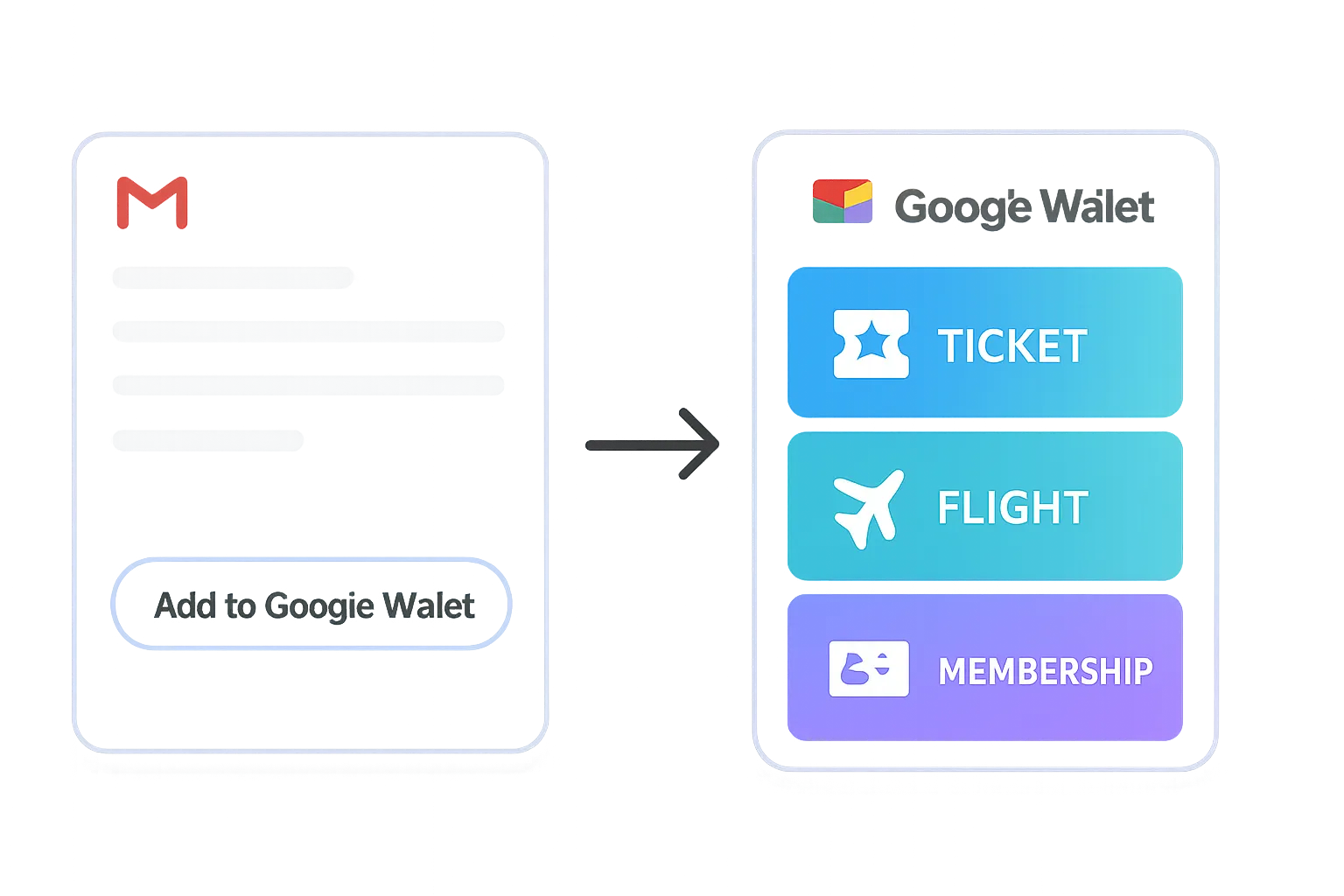
A. Tickets (events, venues)
Find the issuer email in Gmail → Tap “Add to Google Wallet.” If the button is missing, open the issuer’s app or follow the event link in the email to reveal the Save option.
Review event details, seat, date/time → Save.
Pro tip: At entry, increase screen brightness and zoom the barcode/QR if scanners struggle.
B. Boarding passes
From the airline’s email or app, tap “Add to Google Wallet.”
Monitor updates like gate or boarding changes; airlines often push updates to the pass. Reopen the boarding pass before travel to ensure it’s current.
Keep your phone charged and enable notifications for timely alerts.
C. Loyalty/membership cards and coupons
Tap Save to add the loyalty card, membership, voucher, or coupon.
Once saved, the pass becomes a persistent entry point to your account - view points, perks, and receive issuer updates or reminders directly in Wallet.
D. If there’s no Wallet button in the email
Look for a www.google.com/wallet or pay.google.com/gp/v/save link in the message.
Open the booking/order portal from the email; many issuers expose the Save button after you sign in.
If only a PDF or QR code is provided, check the issuer’s app for an “Add to Google Wallet” option or a way to import the ticket/loyalty ID.
Fix It Fast: Troubleshooting Failed Saves and Missing Buttons in Gmail
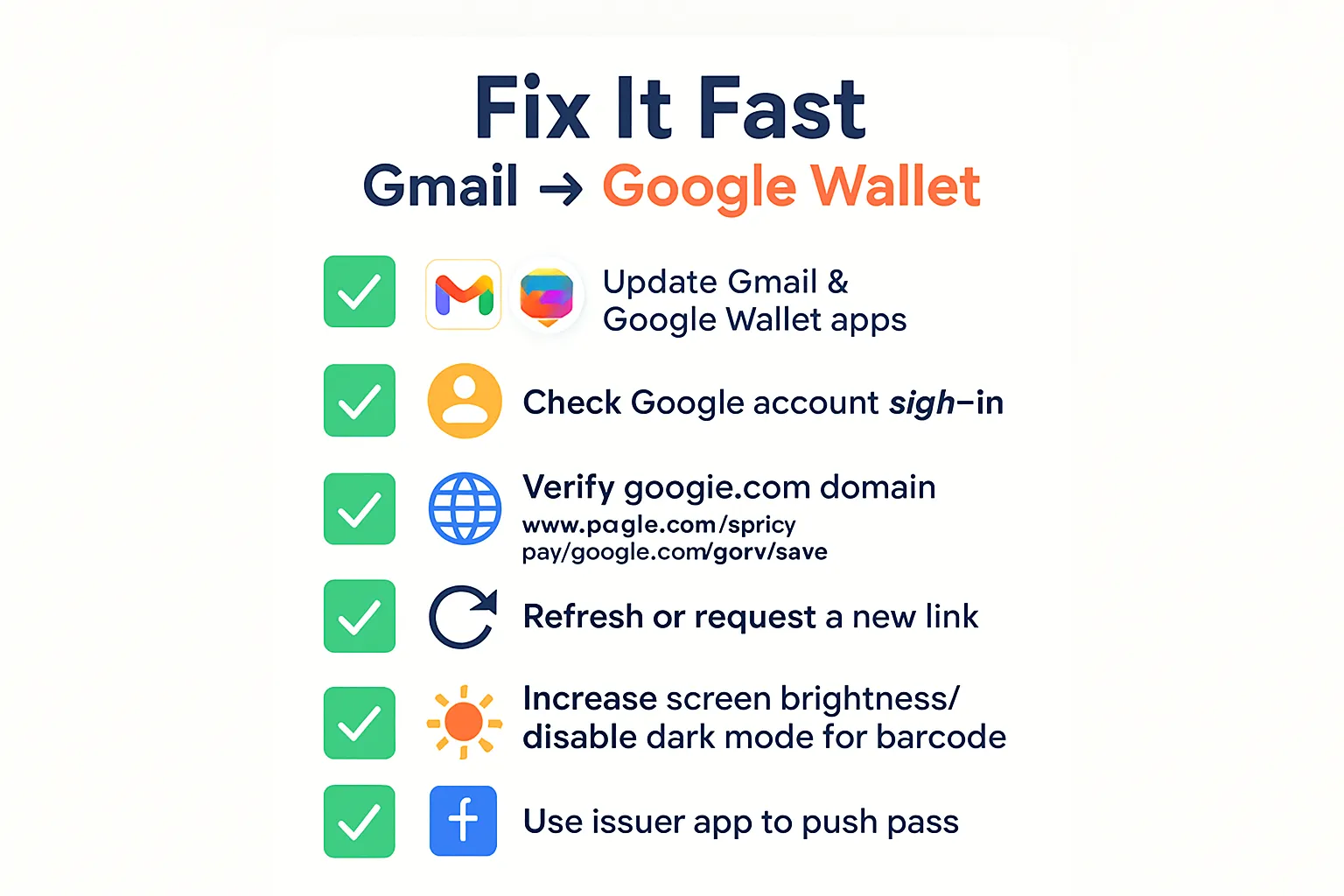
Common issues and quick fixes
“Add to Google Wallet” missing: Update the Gmail app; open the issuer’s app link; verify you’re viewing the original email (not a forwarded copy that stripped markup).
Link opens but won’t add: Confirm you’re signed into the intended Google account on Wallet and Gmail.
JWT expired or invalid: Request a fresh email or regenerate the pass from the issuer account/app.
Region/device support: Check Wallet availability and update Google Play Services.
Barcode won’t scan at the venue
Max brightness, disable dark mode if scanners struggle, and zoom into the barcode/QR. If it still fails, ask venue staff for alternative entry or reissue.
Workarounds
Use the issuer’s app to push the pass to Wallet directly.
On desktop, open the link in Chrome; ensure you’re using the same Google account as on your phone so the pass syncs.
If a PDF is provided, check if the issuer portal/app can convert it into a Wallet pass.
Security & Privacy: Safe Saving from Email
Verify before you tap
Confirm the sender identity (issuer brand domain), HTTPS, and that save links are on google.com (e.g., www.google.com/wallet, pay.google.com).
Avoid shortened or rehosted links from unknown senders; access the issuer’s portal from the email if unsure.
Device-level protection
Use a lock screen and biometrics (PIN/Pattern/Password or supported biometrics). Passes remain accessible offline for entry but are protected by your device security.
Keep screen timeouts short and disable sensitive previews on the lock screen.
Account hygiene
Keep Google Wallet and Gmail updated; remove old/unused passes to reduce clutter and risk.
Turn on 2‑Step Verification for your Google account; report suspicious emails as phishing.
Review account activity and connected devices periodically.
Lost phone or account change
Use Find My Device to lock, locate, or erase your phone remotely.
Passes are tied to your Google account - changing your Google password and signing out of lost devices helps secure access.
"To make payments using Google Wallet, it's mandatory to have a screen lock enabled on your device." - Source
Organize and Manage Your Passes After Adding (Star, Reorder, Archive)
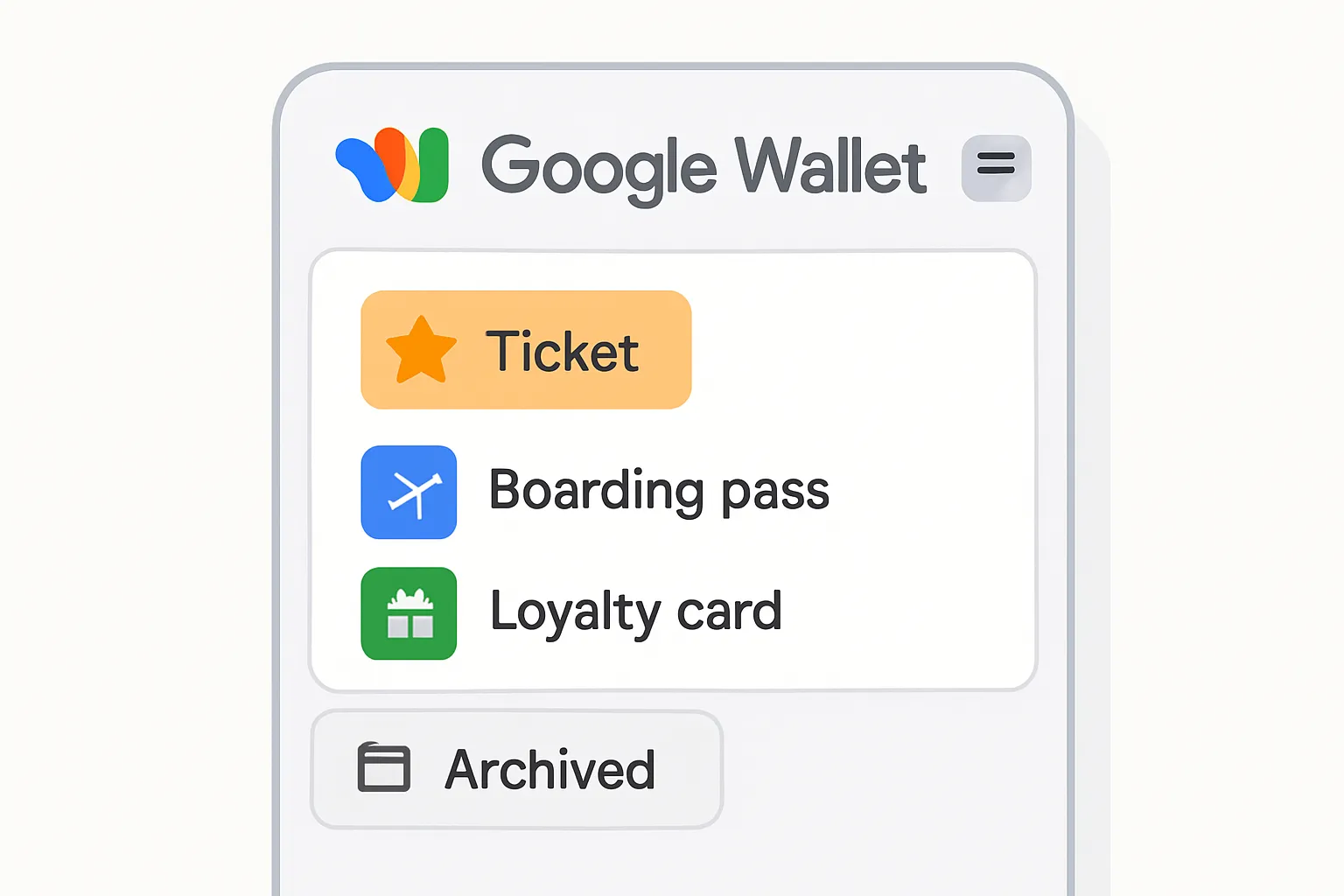
Make the most of Google Wallet’s organization
Star important passes (upcoming trips, VIP access) so they appear first.
Reorder and archive used passes to reduce clutter.
Enable notifications for time/location-based reminders to surface relevant passes right when you need them.
Pro tips for power users
Keep event and travel passes current; archive right after use to keep the list clean.
For frequent flyers and concert-goers: star the next item on your calendar and unstar after use.
Finding passes again
Use Wallet search (issuer name, event, location) to surface passes quickly.
Use Gmail search (issuer name, subject line) to refind the original email with the save link.
Keep Passes Tidy
Goal | Action in Wallet | Where to do it | When to use it |
|---|---|---|---|
Find fast | Star | Pass details | Before event |
Reduce clutter | Archive | Pass menu | After event |
Get reminders | Turn on notifications | App settings | Always |
For Brands and Teams: Make Email Passes That Work (and Convert) in Gmail
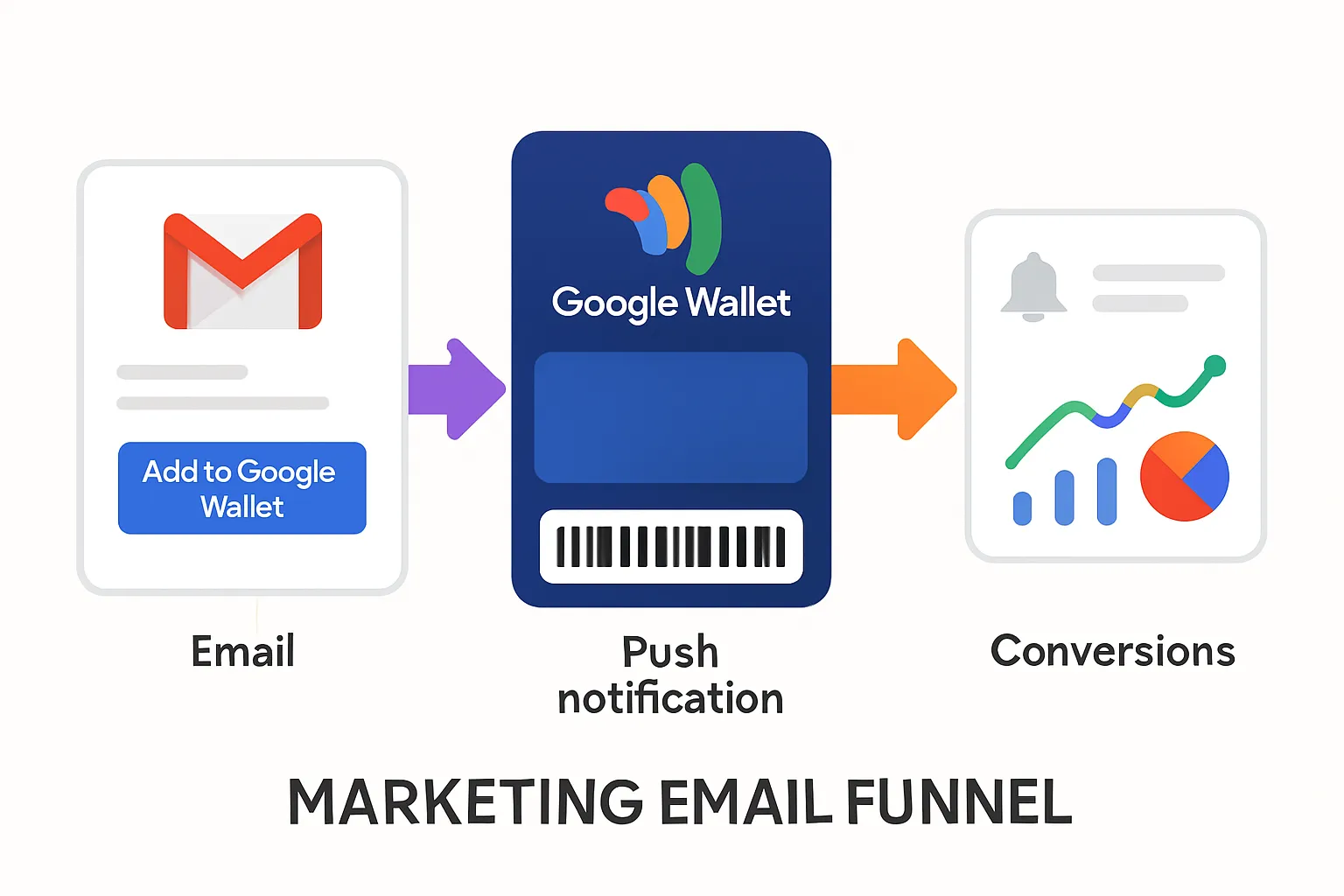
Use wallet-ready save links
Embed a signed JWT-based save link (e.g., pay.google.com/gp/v/save or a www.google.com/wallet path) in your primary email CTA so Gmail users can add with one tap.
Ensure tokens are time-bound but long enough for campaign windows, and always scope to your issuer and object classes.
Design best practices for Gmail
Place a clear “Add to Google Wallet” CTA above the fold with concise value props (Fast entry, Boarding updates, Points on phone).
Add a fallback link to your account portal/app so recipients can regenerate the pass if the JWT is expired or the email is forwarded.
Keep data fresh
Use dynamic fields and real-time updates via the Google Wallet API so saved passes update automatically (gate changes, points accrual, personalized offers).
Configure expiry, status, and messaging rules to reduce stale passes and improve redemption.
Why Loyaltee
Build fully branded Google Wallet passes in minutes - logos, colors, dynamic fields - without developers.
Send wallet-ready emails that render cleanly in Gmail; automate pass updates and push notifications to drive repeat visits.
Get measurable impact: track installs, opens, redemptions, and revenue lift - Loyaltee unifies Wallet passes, data, and AI to optimize ROI.
Advanced: PDFs, QR Codes, Forwarded Emails, and Shared Tickets
PDFs and attachments
Some issuers let you convert PDFs into Wallet passes inside their portals or apps. Check the email for a “View in account” or “Manage booking” link to generate an official save link (e.g., www.google.com/wallet or pay.google.com/gp/v/save).
If the PDF only contains a barcode, that’s usually not enough for Google Wallet. You’ll typically need a valid Wallet save link or to save from the issuer’s app.
QR-only emails
If the email contains only a QR image, look for an issuer link in the message body (e.g., “View ticket,” “Manage booking,” “See in app”). Open it to generate a proper pass.
Some providers rotate dynamic barcodes. A screenshot or copied QR may fail; rely on the official save flow to ensure your “tickets google wallet” pass updates correctly.
Forwarded emails
Forwarding can strip the embedded pass markup or break the JWT (token). Use the original message when possible.
If the save button or link won’t load from a forward, sign into your account (order portal/airline app) and regenerate the pass. Many issuers bind the wallet object to the original recipient.
Sharing tickets
Most Wallet passes are user-bound and non-transferable. Don’t forward a Wallet pass or QR image expecting it to work.
Use the issuer’s official transfer or share tools (e.g., “Transfer Ticket,” “Share Seat”) so the recipient gets their own valid pass and save link.
For group events, send each person the issuer’s transfer invitation. This preserves security and ensures updates (seat, gate, time) reach the correct device.
Tips:
If a www.google.com/wallet or pay.google.com/gp/v/save link fails, confirm the right Google account is signed in and try again on the same device you’ll use at entry.
For “gmail wallet” workflows, always prefer official issuer links over third‑party converters to avoid invalid or unsupported passes.
Quick FAQs: Gmail and Google Wallet Tickets
Can I add tickets from any provider?
Only participating issuers. Look for an “Add to Google Wallet” button or a link to www.google.com/wallet or pay.google.com/gp/v/save.
Do I need internet at the venue?
Passes are typically available offline after saving, so you can present “tickets google wallet” without a connection.
What if the save button is missing?
Open the issuer’s app from the email, or use the account/booking portal to regenerate your pass. Some forwards strip markup - use the original email when possible.
Are www.google.com/wallet links safe?
Yes, when they’re genuinely from Google over HTTPS and sent by a trusted issuer. Verify the full URL domain (google.com) and the email source before tapping.
Can I rename or edit passes?
Editing is limited by issuer and pass type. Use Wallet’s organization features - Star, Reorder, and Archive - to keep important items easy to find.
What account should I use?
Ensure Gmail and Google Wallet are signed into the same Google account; otherwise, the pass may save to the wrong profile.
Can I share a saved pass with someone else?
Most passes are user-bound. Use the issuer’s official transfer/share tools rather than forwarding a Wallet pass or QR image.
Why does the QR/barcode fail at entry?
Increase brightness, zoom the code, and disable dark mode if scanners struggle. If issues persist, ask venue staff or reissue the pass via the issuer’s portal.
Do save links expire?
Yes, JWT-based links can expire. If a link no longer works, regenerate a fresh pass from the issuer’s app or portal.
Conclusion: Make Gmail-to-Wallet Frictionless with Loyaltee
Why switch from “good enough” to great
When your emails just “work,” customers tap once and their pass is saved - no app, no confusion. Loyaltee ensures your Gmail → Google Wallet experience is consistent across “gmail wallet” workflows and www.google.com/wallet save links, so your “tickets google wallet” programs convert more and support fewer help tickets.
What you’ll get
Frictionless onboarding: one-tap add from Gmail, no app required
A direct channel on the phone: Wallet passes as a persistent touchpoint
High-engagement push notifications: discreet, targeted, and measurable
Real-time data and AI: optimize offers, redemptions, and ROI
Full customization: brand, colors, images, dynamic fields, templates in minutes
Scalable and developer-friendly: APIs for updates and notifications
Next step
Start creating Google Wallet passes your customers can save straight from Gmail: https://loyaltee.xyz/