.webp)
Introduction: Google Wallet or Samsung Wallet on Galaxy?
Choosing between Google Wallet and Samsung Wallet on a Galaxy phone comes down to ecosystem fit and priorities. This guide gives Samsung users a practical, side-by-side comparison focused on the features that matter day to day - so you can decide confidently or even run both without friction.
What this guide covers
Quick, practical comparison for Samsung Galaxy users
What’s the same, what’s different, and when using both makes sense
TL;DR
Google Wallet: broader Android compatibility, lean UI, strong cross‑device sync
Samsung Wallet: Galaxy‑only with deep hardware/security integration and extras
How this helps businesses
Whichever wallet customers use, branded digital loyalty cards and offers can live inside Wallet passes. Loyaltee lets brands issue and update those passes at scale for both Apple and Google Wallet users.
At‑a‑glance comparison table
Category | Google Wallet | Samsung Wallet |
|---|---|---|
Compatibility | Works across most Android devices and Wear OS | Galaxy phones/tablets and Galaxy Watch only |
Setup | Sign in with Google account; add cards/passes; set NFC default | Sign in with Samsung account; add cards/passes; set as default on Galaxy |
Security model | Tokenization + device biometrics; secure element/Titan-backed protections | Tokenization + biometrics; Samsung Knox hardware-backed isolation |
Offline payments | Supports limited offline tap-to-pay | Supports limited offline tap-to-pay |
Supported passes | Payment cards, loyalty, offers, transit, tickets, select IDs/keys (region-dependent) | Payment cards, loyalty, memberships, transit, tickets, digital keys/IDs (region-dependent) |
Extras | Deep Google ecosystem sync (Gmail/Maps imports, Wear OS) | Tight Galaxy integration, quick launch gesture, Samsung Pass features |
Best for | Users who want simplicity and cross‑brand Android flexibility | Galaxy owners who want deeper device features and Knox-level security |
Compatibility and device support (2025): will it work on your phone and watch?
Phones and OS
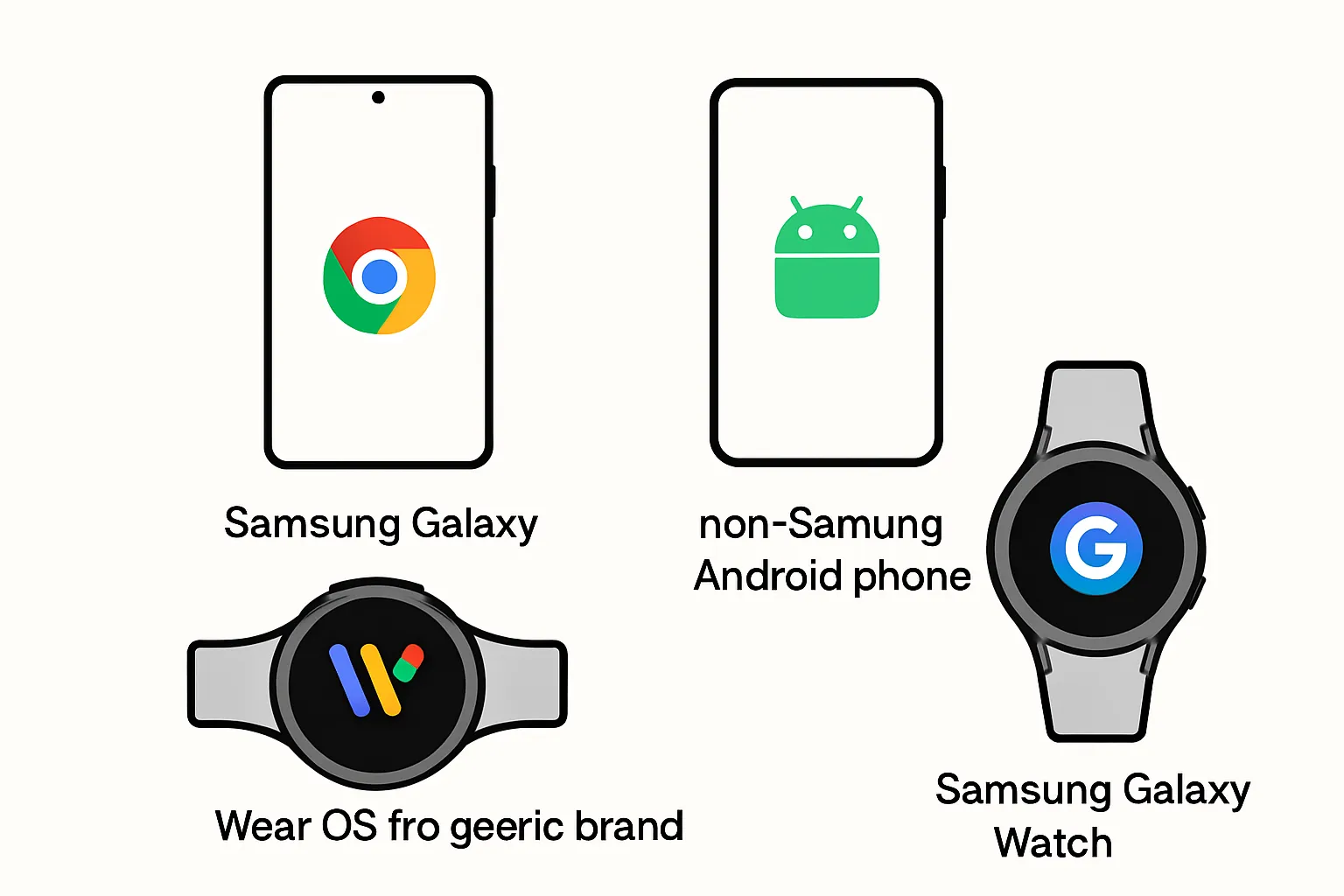
Google Wallet: Works on most NFC‑capable Android phones (Android 7.0+ is common), with broad support across OEMs like Google, Samsung, OnePlus, Xiaomi, and Motorola. Ideal if you switch brands or manage mixed-device fleets.
Samsung Wallet: Available on Galaxy phones and tablets running recent One UI versions. It’s not installable on non‑Samsung devices, making it best for users and teams standardized on Galaxy.
"As the world's most popular OS with more than 3 billion active devices in over 190 countries, it’s an exciting time for Android." - Source
Watches and wearables
Google Wallet on Wear OS: Available on Wear OS watches from multiple brands, useful for cross‑brand Android environments and BYOD scenarios.
Samsung Wallet on Galaxy Watch: Supported on Galaxy Watch models running One UI Watch. Availability and features can vary by region and carrier.
Payment tech and legacy terminals
NFC is the default for both Google Wallet and Samsung Wallet across modern terminals.
MST (magnetic stripe emulation), once a differentiator for older Galaxy models, has largely been discontinued on recent flagships and in many regions.
"Beginning with devices launched in 2021, Samsung Pay will focus its support on NFC transactions across the Galaxy portfolio (with MST not supported on newer models like S21 and beyond)." - Source
Regional availability and bank support
Availability for Google Wallet and Samsung Wallet varies by country and device, and support depends on local banking partners and card networks.
For the most current details, consult each wallet’s official availability and bank support lists in your region, and confirm with your issuing bank for specific card eligibility.
Setup on Galaxy and making a default tap-to-pay wallet
Add your cards and passes
In Google Wallet or Samsung Wallet, tap Add to insert credit/debit cards, transit cards, loyalty or membership passes. You can scan the card or enter details manually.
Complete verification with your bank via one‑time password (OTP), app prompt, or a quick phone call if required. Repeat for each card you want available at checkout.
Make one wallet the default on Galaxy
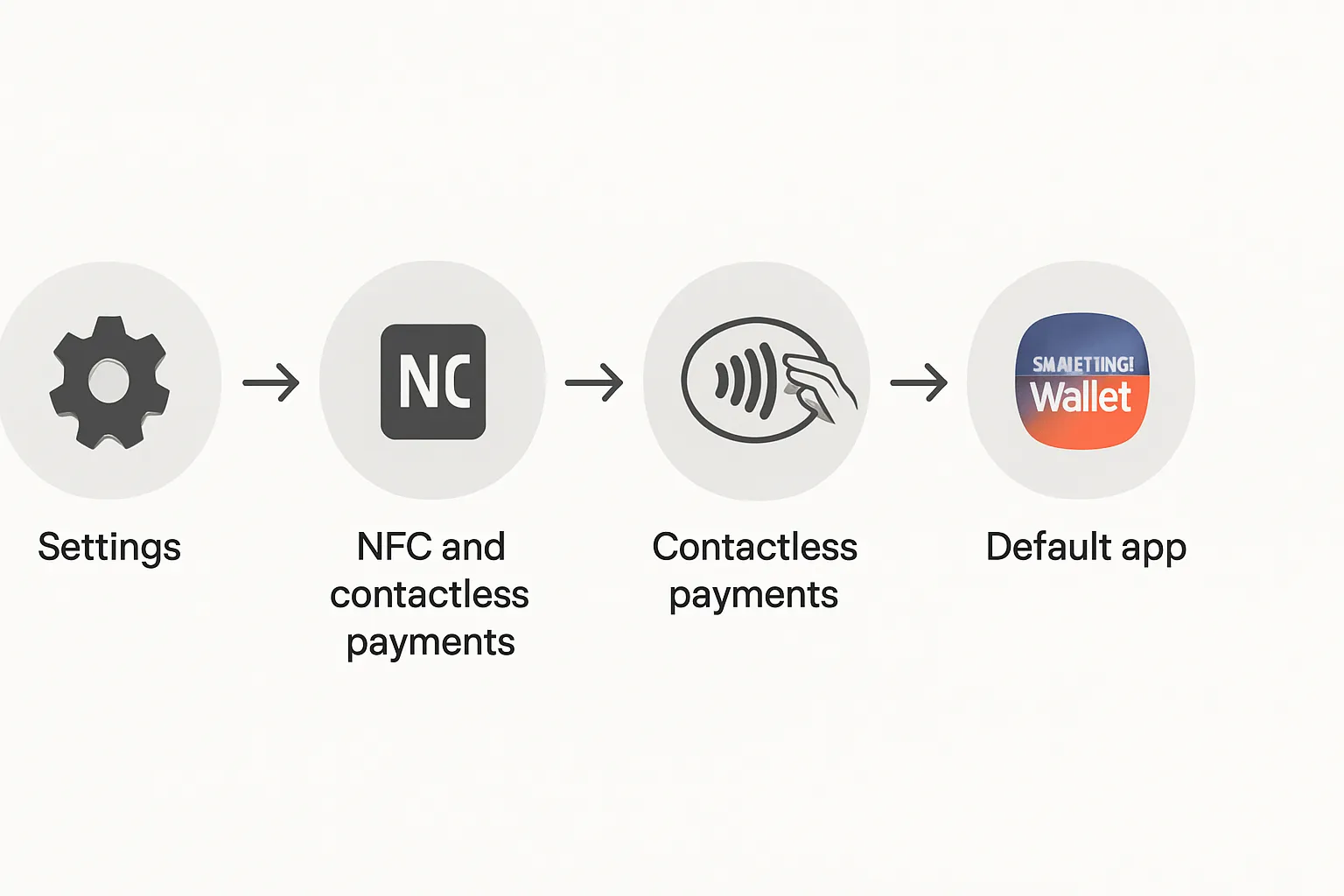
On your Galaxy phone: Settings > Connections > NFC and contactless payments > Contactless payments > Default. Choose Google Wallet or Samsung Wallet.
Ensure NFC is On. Under Pay with, set behavior to Always ask (choose each time) or Default (uses your chosen wallet automatically).
Quick access tips
Samsung Wallet: On many Galaxy models, swipe up from the bottom corners on the lock or home screen to launch, or assign a Side key shortcut in Settings.
Google Wallet: Add the Wallet shortcut to your home screen and enable quick access options; on some devices, long‑press the power button to bring up payment shortcuts.
Travel and transit setup
Add supported transit cards in your chosen wallet. In regions that support it, enable Express/Transit mode to tap without unlocking for faster gate entry. Confirm availability and supported networks in your region before you ride.
Paying in stores and on transit: speed, acceptance, and offline use
In-store payments
Both Google Wallet and Samsung Wallet use NFC on modern terminals for fast, reliable tap-to-pay. Set a default card to avoid prompts, or keep multiple “stacked” cards ready and switch at checkout.
On Galaxy, if you’ve set a default wallet, unlock and tap; if you use “Always ask,” pick the wallet, then the card. Keep the phone flat over the terminal’s NFC target for a consistent read.
Offline payments: what still works
Tap-to-pay works without internet on both apps for a limited number of transactions; your device stores secure tokens that refresh when you reconnect.
Actions like adding/removing cards, updating card details, and syncing recent activity require internet.
"You can use tap to pay without internet, but adding or removing cards and viewing transaction history require an internet connection." - Source
"Samsung Wallet supports offline payments, though some networks limit you to around 10 offline transactions before requiring internet; adding or removing cards requires an active connection." - Source
Transit turnstiles
Reliability at gates depends on antenna placement and gate speed. Enable Express/Transit mode (where supported) to skip unlocking for the first tap.
Battery saver and airplane mode can reduce background processes; keep NFC on and, if possible, maintain enough battery to prevent aggressive power throttling.
Older terminals and edge cases
If a terminal rejects your tap: ensure the device is unlocked, try a second tap with better alignment, or switch to a different card. Confirm your default wallet matches the terminal’s expectation.
Some legacy readers are picky about position - hold steady for a second or two, and avoid cases or rings that might interfere with NFC.
Security deep-dive: tokenization, secure elements, Knox vs Titan/StrongBox
How payments are protected
Tokenization and network tokens: When you add a card, the wallet requests a device‑specific network token from your card network/issuer. At checkout, a unique, one‑time cryptogram is generated, so the merchant never sees your actual PAN (primary account number).
Hardware isolation: Sensitive operations (token storage, key generation, cryptogram creation) are handled by a Secure Element (eSE) or a hardware‑backed Trusted Execution Environment (TEE), separate from the main OS.
Strong user authentication: You must authenticate with a biometric (fingerprint/face) or device PIN before tap‑to‑pay. Risk signals can require step‑up authentication if behavior looks unusual.
Google Wallet security stack
Hardware‑backed keystore: On Pixel, StrongBox keys are anchored to the Titan M/Titan M2 security chip; on other Android OEMs, StrongBox (where available) or TEE‑backed keystores protect keys and tokens. This limits exposure even if Android is compromised.
Attestation and integrity: Hardware attestation and device integrity checks help ensure tokens are used only on a legitimate, non‑tampered device that meets security requirements.
Data minimization: Network tokens and per‑transaction cryptograms prevent PAN exposure; card details are not shared with merchants.
Remote safeguards: If your phone is lost or stolen, you can lock or erase it via Find My Device to instantly disable tap‑to‑pay and revoke Wallet access.
Defense in depth: Screen lock requirements, anti‑overlay protections, and continuous Play Protect scanning reduce the risk of malware intercepting sensitive flows.
Samsung Wallet security stack
Samsung Knox platform: A hardware root of trust verifies the boot chain; sensitive Wallet data and keys are isolated from Android in Knox‑protected hardware (e.g., eSE/TEE, with newer devices leveraging Knox Vault).
Tokenization and biometrics: Samsung Wallet uses network tokens and dynamic cryptograms, with biometric authentication (fingerprint and supported face recognition) or PIN before payment.
Runtime protections: Real‑time integrity monitoring, SELinux enforcement, and anti‑tamper protections restrict access to payment components and keys.
Remote controls: With SmartThings Find, you can remotely locate, lock, and wipe the device, which disables Samsung Wallet payments immediately.
Ecosystem hardening: Tight integration with Galaxy hardware and firmware security updates helps maintain a consistent, locked‑down environment for payments.
Practical security tips
Require unlock to pay: Keep biometric or PIN required for every transaction; avoid turning off authentication for speed unless you’re using an approved “express transit” mode.
Lock it fast if lost: Immediately use Find My Device (Google) or SmartThings Find (Samsung) to lock/erase a lost device and suspend wallet access.
Keep OS and apps updated: Install system and wallet updates promptly; updates often include security patches and issuer compliance improvements.
Avoid screen overlays: Disable or uninstall apps that draw over other apps - especially during payment screens - to reduce overlay and tapjacking risk.
Use trusted sources only: Install apps from official stores, keep Play Protect/Security settings on, and avoid sideloading that could undermine device integrity.
Passes, loyalty, and IDs: living beyond payments
Storing and using passes
Both Google Wallet and Samsung Wallet store more than payment cards: boarding passes, event tickets, store loyalty, gift cards, and offers live alongside your payment methods.
At checkout or entry points, most non‑payment passes use a barcode or QR code. Open the pass from your lock screen or suggestions tray and present it to the scanner. Many passes auto‑sort by time and location for fast access.
Smart surfaces that reduce friction
Location- and time-based suggestions surface the right pass when you arrive at a venue or near a store you frequent.
Lock‑screen shortcuts and proactive notifications help you redeem offers before they expire and pull up tickets at the gate.
Expiration reminders keep coupons and memberships top‑of‑mind so value doesn’t slip through the cracks.
Digital IDs and keys
Availability varies by region and issuer. In supported markets, you can store mobile IDs, vaccine records, and even digital car/home keys. Check your local regulations and compatible devices/vehicles before relying on digital‑only access.
For merchants and marketers
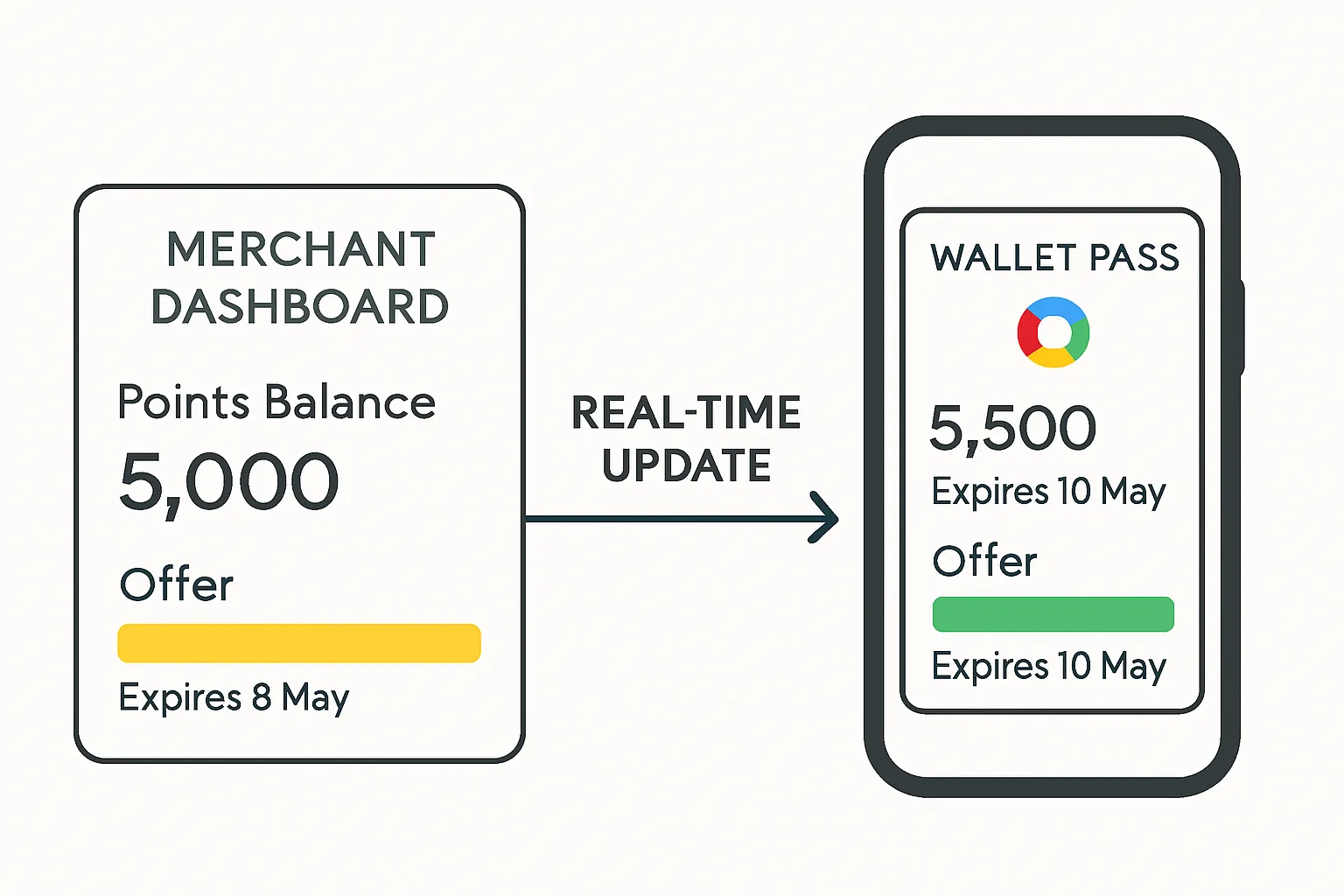
Wallet passes beat plastic and paper: distribute instantly via link or QR, update in real time, and measure outcomes without building an app.
With Loyaltee, brands design fully branded Apple and Google Wallet passes in minutes, trigger targeted push notifications at the right moment, and track ROI across locations. It’s a scalable way to replace paper coupons and unify loyalty across both wallet ecosystems.
Rewards and extras: offers, memberships, and ecosystem perks
Google Wallet
Auto‑import convenience: Google Wallet can surface tickets, boarding passes, and event confirmations detected in Gmail and surface them contextually in Maps - handy when navigating to a venue or airport. This reduces manual pass wrangling and keeps everything ready on arrival.
Partner offers where available: In supported regions, you may see merchant offers or loyalty enrollments surfaced inside Google Wallet or via Google services. Add promos to Wallet in one tap and redeem with barcode/QR at checkout.
Cross‑device perks: Because Google Wallet spans most Android phones and many Wear OS watches, passes and offers tend to follow you seamlessly - useful if you swap devices or run mixed Android brands.
Samsung Wallet
Samsung Rewards and cashback (market‑dependent): Some regions offer points or cashback when paying with eligible cards through Samsung Wallet. Terms, participating merchants, and accrual rates vary by country and issuer.
Samsung Pass integration: Built‑in password and autofill management means fewer app logins and faster checkouts, especially on Galaxy devices. It’s a nice bonus layered on top of payments and passes.
Galaxy ecosystem extras: Smart-home controls and digital keys (where supported) fit neatly into the Galaxy experience - unlock compatible cars or doors, manage smart‑home devices via Samsung services, and launch Wallet quickly from lock/home for speed.
Regional variance matters
Promos, IDs, and keys depend on local partners: Availability of special offers, mobile IDs, vaccine records, and digital car/home keys differs by country, carrier, and device model. Check within your wallet app for what’s supported in your region.
Bank and card network participation: Eligibility for rewards and in‑Wallet promos is influenced by your issuer and card network. If you carry multiple cards, try adding each to see which unlocks the best Wallet‑native benefits.
Business angle: Regardless of whether your customers prefer Google Wallet or Samsung Wallet, offers and memberships work the same way through Wallet passes. With Loyaltee, brands can issue fully branded passes, push targeted offer notifications at the right moment, and track redemptions - across both wallet ecosystems.
Running both wallets on one Galaxy: who should do it?
Can you install and use both?
Yes - on Samsung Galaxy you can install and use both Google Wallet and Samsung Wallet. On non‑Samsung Android phones, Samsung Wallet isn’t available, so dual‑wallet is not an option.
Practical setup
Keep both installed. Set one as the default for in‑store payments, and use the other for specific cards (e.g., corporate card), transit, or memberships. You can switch defaults on the fly in Settings when needed.
Pros and cons of dual‑wallet life
Aspect | Single‑wallet setup | Dual‑wallet setup |
|---|---|---|
Clarity at checkout | Very clear - tap and go with one default | Occasionally confusing - may present prompts or wrong app opens |
Flexibility/use cases | Limited to one ecosystem’s features | Maximum flexibility - split by personal/work, or payments vs transit |
Setup complexity | Simple - one app to configure | Higher - two apps to configure, manage cards/passes in both |
Default card behavior | Straightforward - one default card | Must manage defaults per app; risk of wrong default at POS |
Error risk and pitfalls | Fewer mistakes at terminals | More edge cases - duplicated passes, “card not supported” in one app |
Transit readiness | Good if your transit is supported | Best - use the app with better transit/express support in your city |
Work vs personal separation | Harder to separate | Easy segmentation - keep corporate card in one, personal in the other |
Battery/notifications clutter | Fewer notifications | More notifications and prompts; requires tidy notification settings |
Learning curve for family/team | Minimal training | Higher - users must know which wallet to use, when to switch |
Best for | Users who value simplicity | Power users, frequent travelers, or anyone needing app‑specific perks |
Troubleshooting tap-to-pay fails (field-tested fixes)
Before you tap
Verify NFC is on: Settings > Connections > NFC and contactless payments.
Make sure your phone is unlocked and screen is awake.
Confirm the right default wallet and card:
Settings > Connections > NFC and contactless payments > Contactless payments > Default (Google Wallet or Samsung Wallet).
Open your wallet app and set the intended card as default; move it to the top of your stack.
Disable airplane mode; ensure battery isn’t critically low (some devices restrict NFC at very low charge).
Remove thick/metallic cases, magnetic accessories, or other NFC/RFID cards behind your phone.
At the terminal
Find the NFC hotspot on the reader; hold the phone flat against it for 1–2 seconds.
Wait for the prompt on the terminal before pulling away; retry once quickly if needed.
If you have two wallets installed, tap the on‑screen prompt to choose the correct one or temporarily switch your default.
Ask the cashier to re‑enable contactless or to re‑initialize the transaction if the terminal timed out.
Try a different card in your wallet or a different terminal if the issue persists (some terminals are finicky with certain tokenized cards).
App and device hygiene
Update everything: Wallet app(s), Google Play services, Google Play system update, and One UI/Android security patches.
Exempt your wallet app from battery optimization:
Settings > Apps > Wallet app > Battery > Unrestricted (names vary by device).
Turn off battery saver or performance throttling during checkout.
Clear and re‑add the card if bank verification failed or the token expired; complete OTP/app verification.
Disable screen overlays and accessibility apps that draw over other apps during payments.
Restart your phone after major updates or repeated failures to reset NFC and payment services.
Bank and region issues
Check that your card and bank are supported in your region within your wallet’s “Add card” flow (some cards work in Google Wallet but not in Samsung Wallet, or vice versa).
Ensure device region, language, and time are correct and set to automatic.
When traveling:
Enable data roaming or connect to Wi‑Fi periodically to refresh tokens.
Bring a second card or a backup wallet in case a local terminal/network rejects your primary.
For issuer declines (approved in wallet but denied at terminal), call your bank’s fraud team, confirm overseas usage, and ask them to approve digital wallet transactions.
If the problem is specific to one wallet (Google Wallet vs Samsung Wallet), try the other to isolate whether it’s an issuer-token or app issue.
Final verdict + decision guide
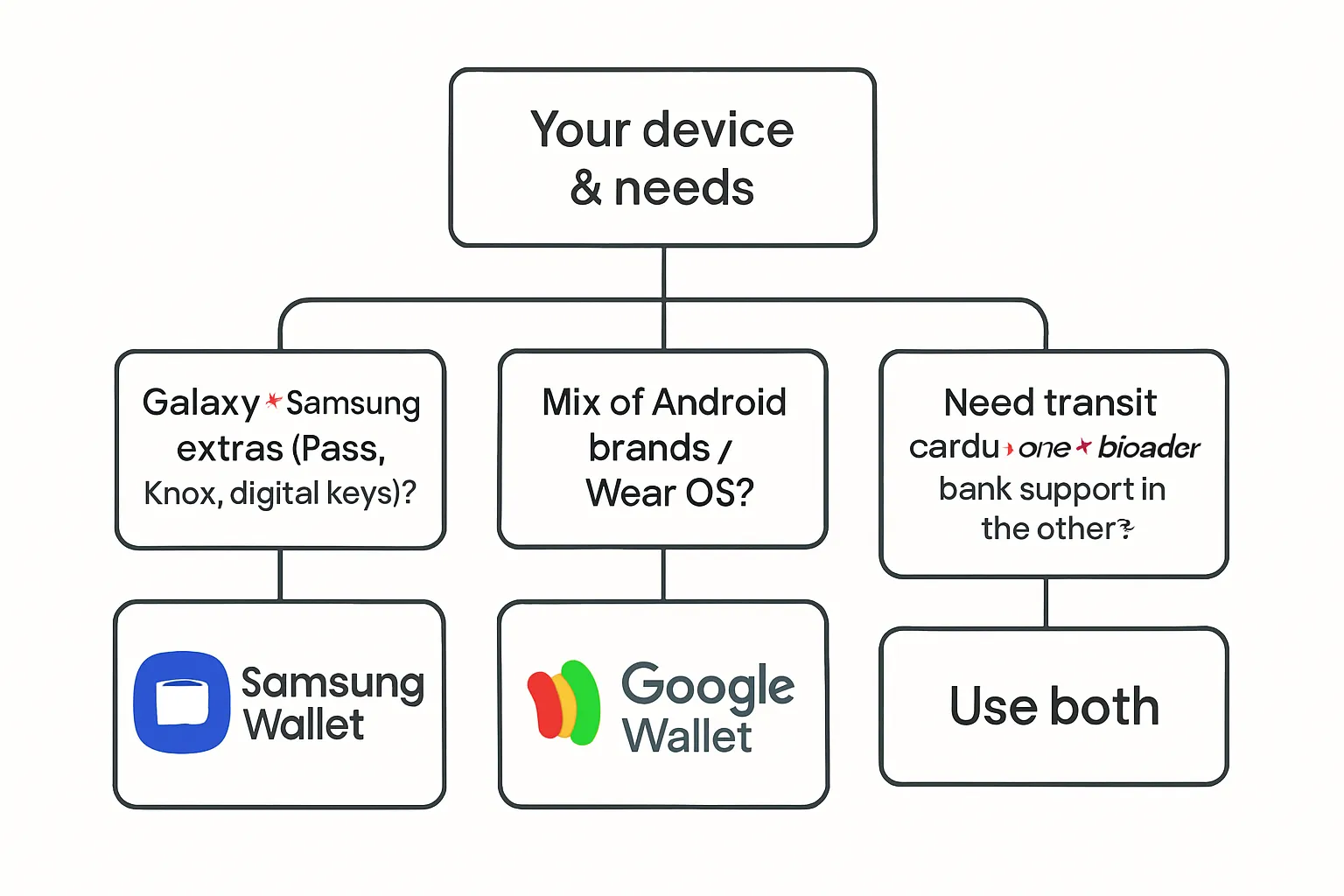
Quick decision flow
Galaxy owner all‑in on Samsung ecosystem and wants extras (pass manager, Samsung Pass, digital keys)? Choose Samsung Wallet.
Mixed Android devices, Wear OS watch, or you swap brands often? Choose Google Wallet.
Need both (e.g., specific transit card + broad bank support)? Run both and set one default.
For businesses
Regardless of which wallet your customers use, you can drive repeat visits with branded Wallet passes and measurable push notifications. Loyaltee helps retailers and services issue, update, and personalize passes across Apple and Google Wallet - no app required. Launch faster, keep customers engaged, and prove ROI with real‑time data and automation.
Final note
Features vary by device, bank, and region; always keep apps updated and confirm support with your issuer.