.webp)
Samsung Wallet 101: What It Is, Where It Works, and Why It’s Safe
What is Samsung Wallet (aka Samsung Wallet Pay) and how it compares
Samsung Wallet is Samsung’s secure digital wallet that lets you pay with Samsung Wallet at checkout and store the essentials you use every day - payment cards, loyalty passes, tickets, boarding passes, and even digital keys - so you can tap and go with confidence. When you use Samsung Wallet pay in-store or in‑app, the wallet creates a fast, secure checkout experience while keeping your card details private.
How it compares:
Samsung Wallet vs. Google Wallet: Both enable NFC/contactless payments and store passes. Samsung Wallet is optimized for Galaxy devices with Samsung Knox protections and deep device integration; Google Wallet runs across a broader range of Android devices.
Samsung Wallet vs. Apple Wallet: Feature sets are similar - add cards, pay contactless, store passes, and use transit - each is native to its platform. Apple Wallet is for iOS; Samsung Wallet is for Galaxy. All three use network tokenization and biometric authentication to protect your cards.
Bottom line: If you carry a Galaxy phone or watch, wallet pay Samsung (Samsung Wallet) delivers a secure, streamlined way to pay, with device-level protections and broad acceptance wherever contactless is supported.
Keywords: pay with Samsung Wallet, Samsung Wallet pay, wallet pay Samsung.
Where you can pay today
In-store (NFC/contactless): Tap to pay anywhere you see the universal contactless symbol on terminals. Just authenticate and hold your Galaxy device near the reader.
In-app and online: Check out on supported merchant apps and sites that offer Samsung Pay as a payment option (you’ll see the Samsung Pay button during checkout where available).
Transit:
Open-loop EMV: Use your bank card in Samsung Wallet on agencies that accept contactless bank cards at the gate/validator.
Regional transit cards: In select regions, you can also add dedicated transit cards and tap to ride (availability varies by city and card program).
Security at a glance
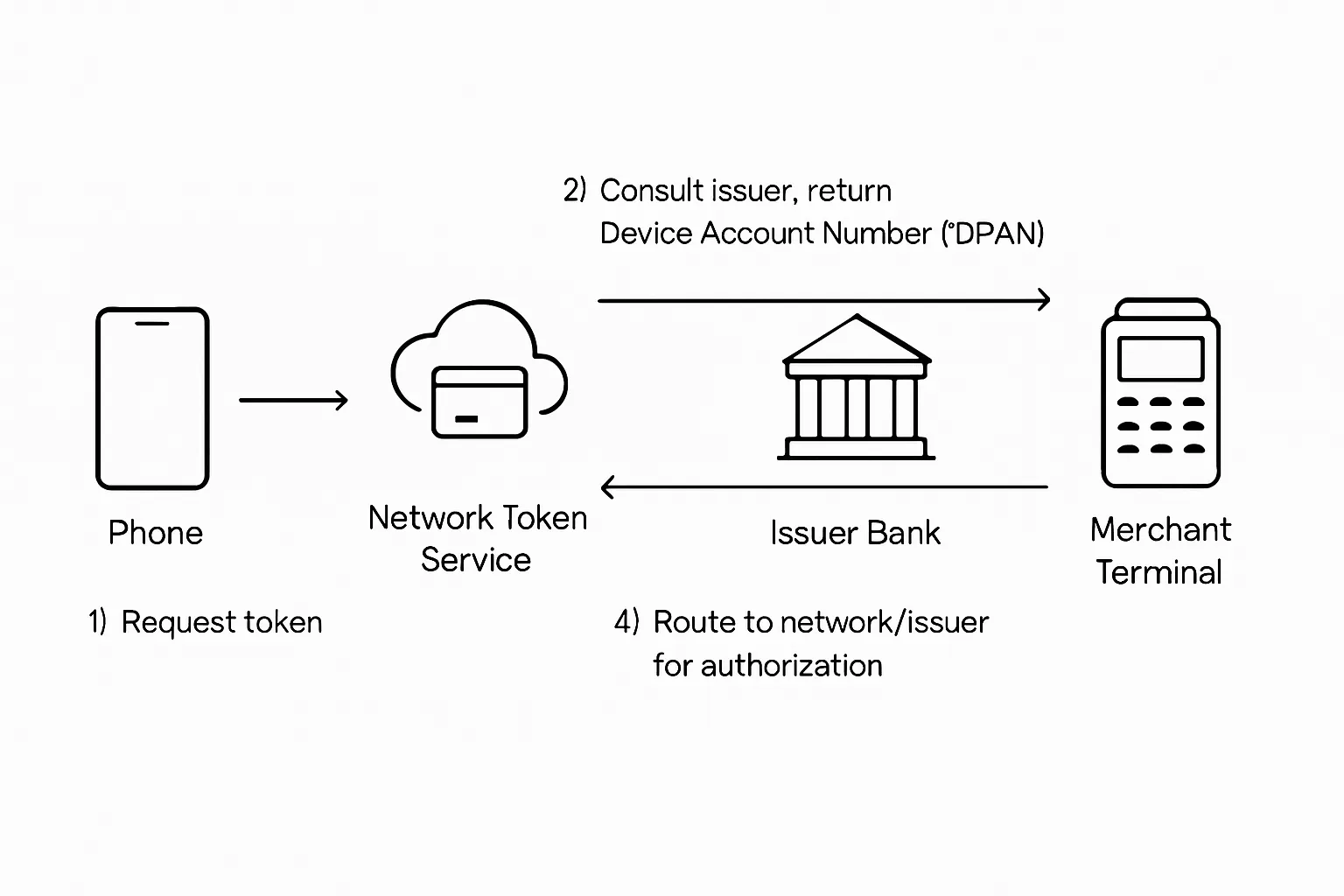
Tokenization basics: When you add a card, your device receives a unique Device Account Number (DPAN/DAN) that stands in for your PAN. This token is what’s used at checkout - not your actual card number.
Authentication and device security: You confirm payments with biometrics (fingerprint/face) or a secure PIN, and Samsung Knox adds hardware-level protections, tamper detection, and ongoing monitoring.
Privacy at the terminal: The merchant never sees your real card number; they receive the tokenized credentials instead.
"Samsung Wallet employs tokenization with a device-specific token, and Samsung Knox protects your data; your actual card number is never shared with merchants." - Source
Quick readiness checklist (preview)
Device compatibility and OS version: Use a compatible Galaxy device on a supported OS.
NFC turned on: Required for contactless payments.
Region and bank support: Your country/region and card issuer must support Samsung Wallet pay.
Lock screen set: Enable biometrics or a secure PIN for authorization.
Stable connection for initial setup: Needed to add and verify cards.
Before You Start: Samsung Wallet Setup Readiness Checklist
Requirement | Why it matters | How to check/fix |
|---|---|---|
Compatible Galaxy device | Only supported Galaxy phones/watches can pay with Samsung Wallet. | Settings > About phone to confirm model; check Samsung Wallet availability for your region/model. |
Android/Samsung OS up to date | Latest updates improve security, compatibility, and payment reliability. | Settings > Software update > Download and install. Restart after updating. |
NFC enabled | NFC powers contactless payments at terminals. | Settings > Connections > NFC and contactless payments > On. |
Default contactless payment set to Samsung Wallet | Ensures the terminal uses Samsung Wallet when you tap. | Settings > Connections > NFC and contactless payments > Contactless payments > Set Samsung Wallet as default. |
Region supported | Availability and features vary by country/region. | Confirm Samsung Wallet availability for your region on Samsung’s site; update device Region/Language if needed. |
Bank/card supported | Only supported cards can be added and tokenized. | In Samsung Wallet > Payment cards > Add card; or verify support on your bank’s/Samsung’s supported cards list. |
Lock screen/biometric set | Required for secure payment authentication. | Settings > Lock screen > Screen lock type (PIN/Pattern); Settings > Biometrics and security to enroll fingerprint/face. |
Good network for verification | Card add/verification needs a reliable internet connection. | Connect to stable Wi‑Fi or mobile data; if issues persist, toggle Airplane mode or restart your device. |
Note for retailers: With Loyaltee, you can issue fully branded loyalty cards, coupons, and memberships that customers can add to Samsung Wallet in seconds - no app required - so you can drive repeat visits and higher basket size using a channel they already use to pay.
Set Up and Add Your First Card (Step-by-Step)
Install, sign in, and prepare
Sign in with your Samsung account (or create one in Settings > Accounts and backup > Manage accounts > Add account > Samsung account).
Set a secure lock method: fingerprint, face, or PIN (Settings > Lock screen > Screen lock type).
Set Samsung Wallet as your default contactless app (Settings > Connections > NFC and contactless payments > Contactless payments > Samsung Wallet).
Optional convenience: enable Quick access/side key shortcut for faster launches (Samsung Wallet > Menu > Settings > Quick access; on some models, Side key > Double press/Press and hold options).
Add a credit or debit card
Open Samsung Wallet > Payment cards > Add credit or debit card.
Scan your card with the camera or tap Add card manually to enter details.
Choose bank verification: SMS/OTP, your bank’s app, email, or a verification call (options vary by issuer).
Follow any additional prompts from your bank to complete verification.
Set the card as your default if you plan to pay with Samsung Wallet daily.
Enable Quick access so you can open Wallet from the lock screen and pay faster.
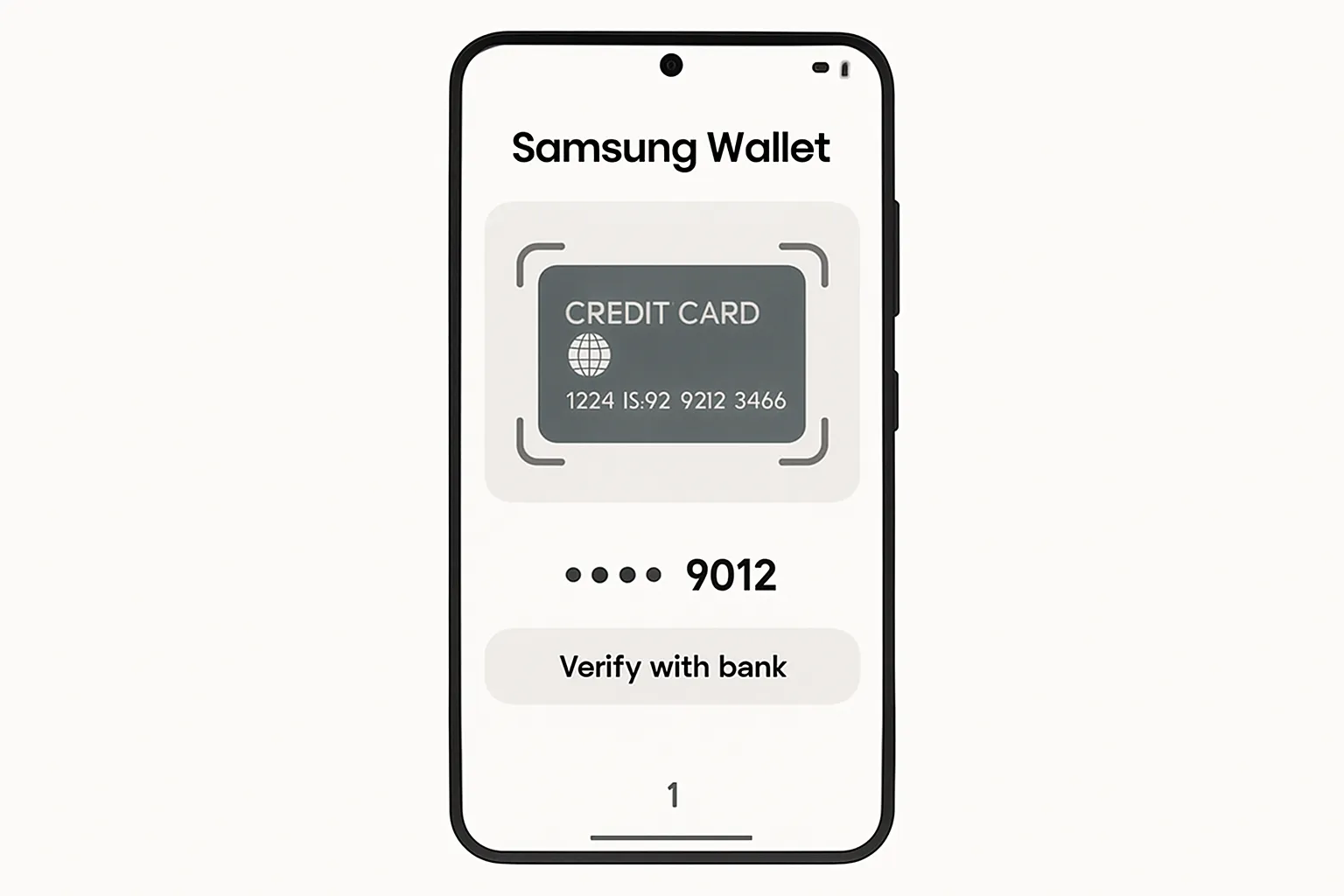
"You can add and manage up to 10 payment cards in Samsung Wallet, plus unlimited gift cards." - Source
Make your first payment in-store
Wake your phone, open Samsung Wallet (or use Quick access), and authenticate with fingerprint/face/PIN.
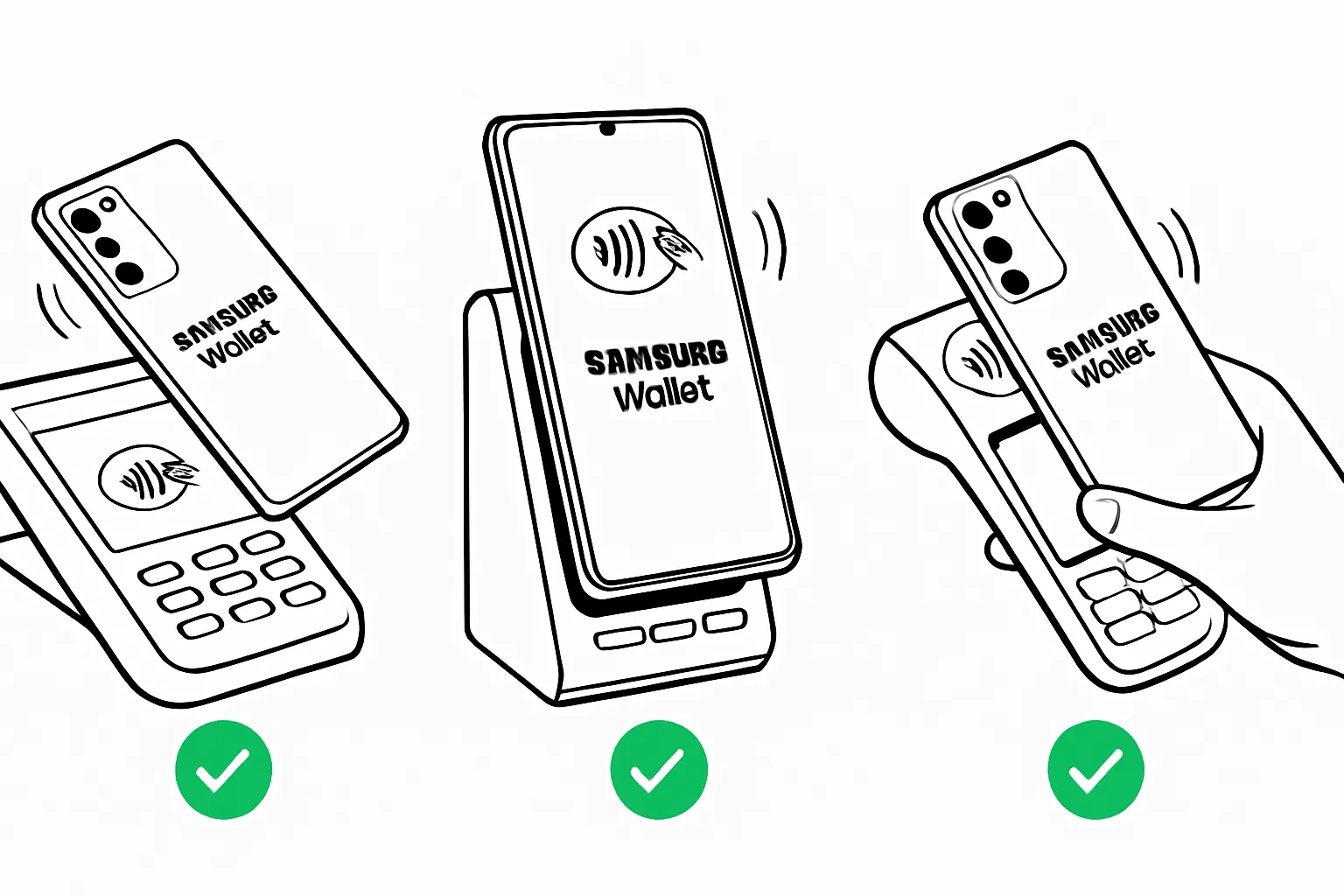
Hold the back of your Galaxy near the contactless symbol on the terminal. Keep it steady until you feel a vibration or see a check mark.
Tips:
NFC taps: Aim for the contactless logo; if it doesn’t read immediately, adjust the position or hold a second longer.
Older terminals: The NFC antenna may be less sensitive - hold your phone closer and steady. If the cashier prompts a different payment flow (e.g., insert card), ask whether contactless is enabled on that terminal.
Add loyalty, passes, and memberships
In Samsung Wallet, go to the Passes or Loyalty section to add store loyalty programs, membership cards, tickets, and boarding passes.
Save time at checkout by presenting your loyalty barcode before you pay with Samsung Wallet pay - many retailers can scan your pass and then accept your tap-to-pay in one flow.
For businesses: With Loyaltee, you can issue fully branded loyalty cards and coupons that customers add to their Wallet in seconds. Passes update in real time - perfect for targeted offers and driving repeat visits.
Supported Cards, Banks, and Regions: What Works (and How to Check)
Card networks and bank coverage
Most major networks are supported, including Visa, Mastercard, American Express, and Discover, but availability varies by country and by issuing bank.
How to confirm your bank:
Check Samsung’s country-specific “Supported banks and cards” page for Samsung Wallet in your region.
Or simply try adding the card in Samsung Wallet > Payment cards > Add card. If your issuer isn’t supported, you’ll be notified during the add/verification flow.
Countries/regions and feature differences
Samsung Wallet availability differs by market. In many regions, beyond tap‑to‑pay you’ll find extras like transit cards, car/home digital keys, and IDs. Some markets limit certain features or specific networks due to local regulations and issuer participation.
Prepaid and virtual cards: Often supported where the issuer participates in tokenization; check your bank’s listing.
Corporate and commercial cards: Support depends on the issuer’s wallet enablement and your company’s policy - try adding or verify with the issuer.
Wallet card numbers and receipts
When you add a card, Samsung Wallet provisions a tokenized Device Account Number (DAN/DPAN) that’s different from your physical card’s PAN.
Why it matters: Merchants see the tokenized number, not your real PAN.
For returns: You may be asked for the last four digits of the digital card number. Find it in Samsung Wallet > Payment cards > select card to view the digital last four.
If your bank isn’t supported
Try a different supported card (another bank or network).
Ask your bank about upcoming Samsung Wallet support and timelines.
Use your physical card in the meantime; you can switch to Samsung Wallet pay once support is enabled.
Card Networks and Example Bank Support by Region
Note: Availability changes frequently. Always verify in Samsung Wallet or on Samsung’s supported banks page for your country.
Region | Networks supported | Example banks | Notes (availability changes; always verify in Samsung Wallet/app) |
|---|---|---|---|
United States | Visa, Mastercard, American Express, Discover | Chase, Citi, Bank of America, Capital One, American Express | Some small/regional banks vary; Discover support may vary by issuer program. |
Canada | Visa, Mastercard, American Express | RBC, TD, Scotiabank, CIBC, BMO, Amex Canada | Interac support can be issuer-dependent; transit features vary by city. |
United Kingdom | Visa, Mastercard, American Express | Barclays, HSBC UK, Lloyds, NatWest, Santander, Amex UK | Strong transit acceptance; some cards require in‑bank verification steps. |
European Union (selected markets) | Visa, Mastercard | BNP Paribas, ING, UniCredit, CaixaBank, Deutsche Bank | American Express availability varies; digital ID/keys availability differs by country. |
Australia | Visa, Mastercard, American Express | Commonwealth Bank, NAB, ANZ, Westpac, Amex AU | Broad contactless acceptance; check issuer lists for prepaid/virtual support. |
Singapore | Visa, Mastercard, American Express | DBS/POSB, OCBC, UOB, Standard Chartered, Amex SG | High contactless adoption; corporate card support varies. |
South Korea | Visa, Mastercard, local networks | KB Kookmin, Shinhan, Woori, Hana | Deep feature set including transit cards and additional local services. |
Middle East (selected markets) | Visa, Mastercard | Emirates NBD, FAB, QNB | Availability and feature sets differ by market; verify in‑app. |
Latin America (selected markets) | Visa, Mastercard | Itaú, BBVA, Santander | Rollout and bank participation vary widely by country - test in Wallet. |
India | Visa, Mastercard | HDFC Bank, ICICI Bank, SBI, Axis Bank | Availability may be limited and subject to change; verify with issuer. |
How to Pay with Samsung Wallet (In‑Store, In‑App, and Online)
In‑store (contactless NFC)
Steps to pay:
Open Samsung Wallet (or use Quick access),
Authenticate with fingerprint/face/PIN,
Hold the back of your Galaxy to the terminal’s contactless symbol until you feel a vibration or see a check mark. That’s it - you’ve paid with Samsung Wallet.
CVM (Cardholder Verification Method) tips:
For some amounts or merchants, the terminal may prompt for a PIN or signature after you tap. This is normal and depends on local rules and your card issuer.
If prompted, follow the terminal instructions (enter your card PIN or sign).
Limits:
Many markets enforce contactless limits above which a PIN is required. Limits vary by country and issuer; if a higher‑value payment doesn’t complete, try again and be ready for a PIN prompt or insert the physical card if the merchant’s terminal requests it.
In‑app and online
At checkout on participating apps and websites, choose Samsung Wallet/Samsung Pay. Select your card, authenticate, and complete the purchase.
3‑D Secure (3DS) and bank prompts:
Your bank may request an additional verification step (one‑time passcode, bank app approval, or SMS/OTP). Complete the prompt to finalize payment.
Galaxy Watch payments (overview)
Launch Wallet on your Galaxy Watch, enter your watch PIN, and hold the watch near the contactless symbol on the terminal.
Watch and phone tokens are separate:
Even if the same card is on your phone, the watch uses its own device token. Add/activate cards on the watch to pay from your wrist.
Pro tips for speed and reliability
Make Samsung Wallet the default NFC payment app: Settings > Connections > NFC and contactless payments > Contactless payments > Samsung Wallet.
Keep the phone awake at the reader and hold steady until it vibrates or shows a check mark.
If one angle fails, shift the phone’s top/back slightly to align the NFC coil with the terminal.
If a terminal declines taps repeatedly, ask if contactless is enabled; some merchants disable contactless for certain transactions or amounts.
For everyday speed, enable Quick access so you can pay with Samsung Wallet pay in two steps: wake, authenticate, tap.
Ride Transit with Samsung Wallet: Gates, Express Options, and Best Practices
Open‑loop EMV (use your bank card in Wallet)
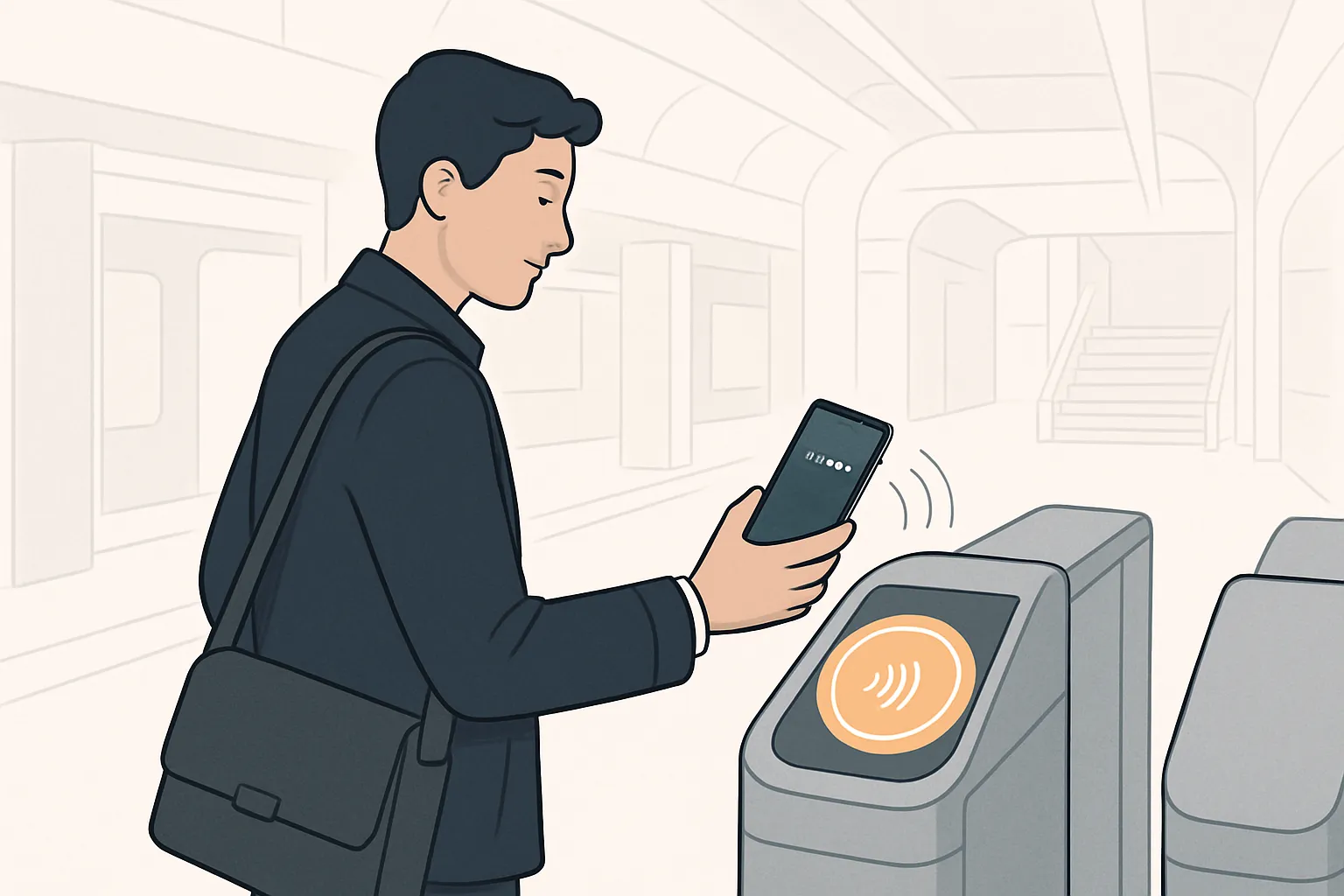
Where accepted, you can tap your tokenized bank card in Samsung Wallet at the gate or validator - no separate transit card required.
Fares and caps: Many agencies aggregate trips and apply daily/weekly caps automatically. Policies vary by city - check your local transit authority’s website for cap thresholds and off‑peak rules.
Transit cards in Samsung Wallet (region‑specific)
In supported markets, add a dedicated stored‑value or regional transit card directly to Samsung Wallet. Look for Transit or Passes in the app, then search for your city/agency.
Faster gates: If your region supports an express or “fast transit” mode, set your default transit card/payment method in Wallet so you can just tap to ride without extra steps.
Gate etiquette and reliability
Wake your device, authenticate if needed, then tap once. Avoid presenting multiple devices/cards near the reader to prevent card clash.
Hold steady on the contactless target until you hear a beep or see GO, then proceed through the gate.
If a read fails, step aside and try again - don’t repeatedly tap quickly at the sensor.
Troubleshooting transit taps
Try a different gate reader if one lane is unresponsive.
Ensure NFC is on, and remove very thick or magnetic cases that can interfere with the antenna.
If you’re charged incorrectly, review trip history in your bank app and your transit agency account; most agencies provide adjustments or refunds via their support portal.
Troubleshooting: Declines and Common Errors (Fast Fix Flow)
If a terminal shows a decline
Check card status and funds: Open your banking app to confirm available balance, card not frozen, and no fraud alerts or travel restrictions.
Retry properly: Unlock, open Samsung Wallet, re‑authenticate, and tap again. If possible, try a second terminal.
Important: Once the terminal has received your payment info, the outcome is between the merchant and your card network/bank; Samsung Wallet can’t reverse a merchant-side decline.
NFC and device settings
Turn on NFC: Settings > Connections > NFC & contactless payments.
Set Wallet as default: Settings > Connections > NFC & contactless payments > Contactless payments > Samsung Wallet.
Phone placement and cases
Align the NFC coil: Usually near the upper back of Galaxy phones - touch that area to the contactless symbol and hold for 1–2 seconds.
Remove interference: Thick, metallic, magnetic, or wallet-style cases can block the signal. Remove and retry.
Network and app issues
During setup/verification, ensure strong Wi‑Fi or mobile data. Weak connectivity can block card provisioning.
If the app crashes or lags: Clear cache, update Samsung Wallet and system software, or reinstall. Restart the phone to refresh services.
Biometrics/PIN not recognized
Re‑enroll your fingerprint/face in Settings or use your Samsung Wallet PIN as a fallback.
Keep sensors clean and dry; reregister if recognition is inconsistent.
Unsupported readers
Some older pumps, kiosks, and vending machines lack NFC and won’t accept tap to pay with Samsung Wallet.
Special cases
Rewards points and certain prepaid/gift cards: Cash back or offline transactions may be restricted; follow issuer rules.
For returns: Provide the last four digits of your Wallet’s digital card number (DAN), not the physical card’s last four. View it in Samsung Wallet > Payment cards > select card.
Samsung Wallet on Galaxy Watch: Add, Verify, Manage, Remove
Requirements and support
Supported models: Galaxy Watch7 series, Watch6 series, Watch5 series, Watch4 series (Wear OS), plus earlier Samsung Pay–enabled watches like Galaxy Watch3 and Galaxy Watch Active2 (Tizen) in supported regions.
Phone compatibility: When paired with a non‑Samsung Android phone, Android 6.0+ is required.
Separate wallet per device: The watch’s Wallet is distinct from your phone’s. Even if the same card exists on your phone, you must add and verify it on the watch. Tokens are unique per device.
Add and verify
On your phone, open the Galaxy Wearable app.
Go to Pay or Wallet (path varies by watch model), then choose Add payment card.
Scan your card with the camera or enter details manually.
Complete bank verification (SMS/OTP, bank app approval, or other methods as prompted).
Set a watch PIN if you haven’t already. This is required to authorize tap‑to‑pay from the watch.
Optional: Set a default card on the watch for faster “Samsung Wallet pay” at the terminal.
Manage and remove
View transactions: Open Galaxy Wearable > Wallet/Pay > Payment cards to see watch transaction history (separate from phone transactions).
Manage settings: You can rename cards, set a default card, or adjust quick access where supported.
Remove on the watch:
Launch Wallet on the watch > select the card > touch and hold > tap the minus icon > confirm Delete card.
Remove via Galaxy Wearable:
Galaxy Wearable > Wallet/Pay > Payment cards > select card > More options (three dots) > Delete card > confirm. Steps may vary slightly by model.
Paying with your watch
Launch: Press and hold the Back button (or your assigned shortcut) to open Samsung Wallet.
Authenticate: Enter your watch PIN when prompted.
Tap to pay: Hold the watch face or side with the NFC antenna near the terminal’s contactless symbol until you feel a vibration or see a confirmation on the display.
Tips for reliability: Keep the watch steady for 1–2 seconds, and ask the cashier to enable contactless if the terminal doesn’t respond.
Privacy and Security Best Practices
Built‑in protections
Tokenization and device‑bound keys: When you add a card, Samsung Wallet stores a tokenized Device Account Number (DAN/DPAN) instead of your PAN. Each transaction uses a one‑time dynamic cryptogram, so your real card number is never shared with merchants.
Samsung Knox hardware security: Sensitive credentials are protected in hardware-backed, tamper‑resistant areas, with real‑time integrity checks to help prevent malware and rooting attempts.
Biometric/PIN gating: Every payment requires biometric or PIN authentication (unless your region supports an express transit mode), ensuring only you can authorize transactions.
Your role in staying secure
Keep software updated: Regularly update Android, One UI, and Samsung Wallet to get the latest security patches and improvements.
Enable Find My Mobile: Turn on remote lock, locate, and wipe so you can protect data and Wallet passes if your device is lost or stolen.
NFC preferences: Consider disabling NFC when you don’t plan to tap to pay, especially if you keep multiple NFC cards/devices in close proximity.
Monitor activity: Review card statements and Wallet transaction history frequently; enable bank alerts for new transactions and verification prompts.
Device integrity
Don’t root or modify system security: Rooting/jailbreaking can disable Wallet and remove key protections, putting your data and cards at risk.
Use a strong lock screen: Choose a strong PIN or passcode and enroll trusted biometrics. If you suspect compromise, change your PIN immediately and re‑enroll biometrics.
Limit lock screen content: Hide sensitive notifications on the lock screen and restrict what’s visible when the device is locked.
Be cautious with cases and accessories: Avoid magnetic add‑ons that could interfere with NFC reliability; keep sensors clean for consistent biometric recognition.
FAQs: Using and Managing Samsung Wallet
Can I pay without internet? Yes. After setup, you can pay with Samsung Wallet in-store via NFC without an active internet connection because your device holds a secure token. You do need internet to add or verify cards, update passes, and for some in‑app/online payments.
What if my bank isn’t supported? Try adding a different card from another bank or network. Ask your bank if Samsung Wallet support is planned and when. Until then, you can use the physical card. Support varies by region and issuer, so check again periodically in Samsung Wallet.
Are there fees for Samsung Wallet? Samsung Wallet itself doesn’t charge fees for payments. Your bank/issuer terms still apply (e.g., interest, foreign transaction fees, cash‑advance rules). Review your cardholder agreement for details.
What if I lose my phone? Use Find My Mobile to lock or wipe your device remotely. Then contact your bank to freeze or replace affected cards. Tokens are device‑bound and protected by your lock method, but you should still secure your accounts immediately.
Where do I find the last 4 digits for returns? Merchants may ask for the last four of your Wallet’s digital card number (token), which differs from your physical card’s last four. Open Samsung Wallet > Payment cards > Select your card to view the digital number (DAN) last four.
Conclusion: Tap to Pay with Confidence - And Turn Wallet Into Revenue with Loyaltee
You’re now ready to pay with Samsung Wallet across in‑store, in‑app, and transit experiences - backed by tokenization, device‑bound security keys, and biometric/PIN authentication. Whether you’re tapping at the checkout or cruising through a fare gate, Samsung Wallet makes paying fast, private, and reliable.
For retailers, restaurants, salons, and fitness brands, the next step is turning Wallet into a measurable growth channel. Loyaltee helps you deploy Wallet‑ready loyalty cards, coupons, vouchers, and memberships that customers add in one tap - no app download, no friction. From the second a pass sits in a customer’s Wallet, you gain a direct, persistent touchpoint on their phone.
Why Loyaltee:
Frictionless onboarding: app‑free sign‑up in seconds
Fully branded passes: logos, colors, and dynamic fields - live in minutes
Push notifications with 50%+ open rates: targeted, discreet, and timely
Real‑time data and AI: optimize offers, measure ROI, and automate campaigns
Simple, scalable pricing: from SMB to enterprise
Developer‑friendly APIs: real‑time updates and push at scale
Next step: launch Wallet‑ready loyalty cards, coupons, and memberships that customers add with one tap - then automate retention, win back lapsing guests, and grow average order value with timely, personalized offers.
Call to action: Visit loyaltee.xyz to start turning every tap into a customer relationship you own.