.webp)
What Paying with Apple Wallet Means Today (In‑Store, In‑App, Online)
Apple Wallet and Apple Pay have moved beyond “nice-to-have” and into baseline customer expectations. Paying with Apple Wallet now spans every major checkout scenario - tapping in‑store with NFC, approving purchases in apps via the native Apple Pay sheet, and completing online orders on the web (including QR handoff from desktop to iPhone). For modern retailers and services, this is where conversion and customer experience (CX) are won.
"In 2024, Apple Pay had over 500 million users worldwide." - Source
For businesses using Loyaltee, this demand is a growth lever: your branded Wallet passes sit beside a customer’s cards in the Apple Wallet, creating a persistent, measurable pathway to repeat purchases and Apple Pay–powered checkouts - without forcing an app download.
Who this guide is for (retailers, hospitality, services, fitness, multi‑location brands)
Retailers and multi-location brands looking to speed up checkout and capture more repeat visits
Cafés, QSRs, and restaurants aiming to turn lines faster and uplift average ticket size
Health, beauty, and wellness providers that want seamless, app‑free membership and prepaid packages
Fitness and studios standardizing payments and access across locations and channels
Growth, CRM, and digital leaders who need measurable, app‑free engagement and revenue impact
What you’ll learn: adding cards, paying across channels, resolving declines, and securing transactions
How customers add cards to the Apple Wallet and start paying with Apple Pay in minutes
Best practices for paying with Apple Wallet in‑store (NFC), in‑app (native sheet), and online (web payment sheet and QR handoff)
How to diagnose and resolve declines and reader issues quickly
How Apple Pay security works (tokenization, biometrics) and what that means for trust and approval rates
How Loyaltee Wallet passes amplify adoption, engagement, and conversions across these journeys
Why “paying with Apple Wallet” improves conversion and CX vs. plastic cards
Fewer steps, fewer errors: Apple Pay eliminates manual card entry and address fields in apps and on the web - resulting in higher conversion, especially on mobile.
Faster in‑store throughput: Tap‑to‑pay with Face ID/Touch ID reduces queue times and boosts staff efficiency.
Built-in trust: The Apple Pay brand plus tokenization increases perceived security, which nudges first‑time purchases and higher‑value orders.
Higher auth and fewer false declines: Device cryptograms and biometric authentication can improve authorization rates compared to keyed or magstripe card flows.
Frictionless repeat behavior: Once a card is in the Apple Wallet, the path to purchase is one tap; pairing it with a Loyaltee pass puts timely offers directly on the lock screen.
Eco‑friendly and measurable: Replace plastic loyalty cards and paper coupons with dynamic, data‑driven Wallet passes that you can update and track in real time.
Channels overview at a glance: in‑store (NFC), in‑app (native sheet), online (web payment sheet / QR handoff)
In‑store (NFC):
Customer double‑clicks side button (Face ID) or uses Touch ID, then holds the top of iPhone near the contactless reader until they see Done and a checkmark. Apple Watch works via a double‑click of the side button, then tap.
Ideal for: retail checkout, restaurants, transit, vending, pop‑ups, events.
In‑app (native Apple Pay sheet):
Customer taps the Apple Pay button; the native sheet appears with shipping, contact, and card details auto‑filled. They confirm with Face ID/Touch ID.
Ideal for: mobile ordering, subscriptions, tickets, and memberships.
Online (web payment sheet + QR handoff):
On Safari (and with participating browsers), the Apple Pay button opens a secure payment sheet. On other devices/browsers, a QR handoff lets the customer scan a code with their iPhone to approve in Apple Pay.
Ideal for: desktop and mobile web checkout, cart recovery flows, and buy‑online‑pickup‑in‑store (BOPIS).
Loyaltee integrates seamlessly with these flows by putting your loyalty card, coupon, or membership pass in Apple Wallet, then nudging customers back to purchase with targeted push notifications and dynamic pass updates.
Reader prerequisites to set expectations: compatible devices, regions, and supported cards
Devices:
iPhone with Face ID or Touch ID for in‑store and in‑app payments; Apple Watch for tap‑to‑pay in‑store.
Mac with Touch ID or paired iPhone/Apple Watch for web payments.
Software and region availability:
Apple Pay availability varies by country/region and software version; some features (e.g., QR handoff) are limited to participating merchants/browsers and markets.
Supported cards and networks:
A supported debit/credit card from a participating issuer is required. Acceptance depends on the merchant, the card network, and the region.
Merchant acceptance:
In‑store: look for the contactless symbol. Online/in‑app: look for the Apple Pay button at checkout.
Tip for teams: Set expectations clearly in help content and at POS. When customers know their device/card works, adoption rises and support tickets fall.
Key terms: Apple Wallet vs Apple Pay (and what customers actually see at checkout)
Apple Wallet:
The place on iPhone and Apple Watch where customers store cards and passes. This includes payment cards, loyalty cards, coupons, vouchers, and membership cards created with Loyaltee. Think of the Apple Wallet as the container and always‑on engagement surface on the customer’s phone.
Apple Pay:
The payment mechanism that uses cards stored in the Apple Wallet to complete transactions securely via tokenization and biometrics. At checkout, customers see an Apple Pay button (online/in‑app) or use Face ID/Touch ID and tap their device in‑store.
What customers see:
In‑store: “Hold near reader… Done” with a checkmark.
In‑app/web: A native Apple Pay sheet showing selected card, shipping, and contact details; then Face ID/Touch ID confirmation.
Developer/tech note for search relevance:
You may see “com apple pay” referenced in technical documentation and merchant configurations; it relates to Apple Pay domains/identifiers used during integration - not a brand a customer will see. For customers, keep wording simple: “Pay with Apple Pay in the Apple Wallet.”
By aligning your CX to how customers are already paying with Apple Wallet, you reduce friction across channels and turn Wallet passes into a measurable revenue engine. Loyaltee makes this easy - design branded passes in minutes, trigger timely nudges, and connect the dots from pass to payment to repeat visit.
Apple Wallet vs. Apple Pay: How It Works and Why It Converts
Apple Wallet is the customer’s always‑on container for cards and passes; Apple Pay is the secure payment method that uses those cards to complete purchases. Together, they compress steps, boost trust, and lift completion rates across in‑store, in‑app, and online checkouts - making paying with Apple Wallet a conversion win your team can measure.
Apple Wallet (the container) vs Apple Pay (the payment method)
Apple Wallet: The iPhone/Apple Watch app that stores payment cards and branded passes (loyalty, coupons, memberships). With Loyaltee, your pass becomes a persistent touchpoint in the Apple Wallet that nudges customers to return and spend.
Apple Pay: The payment experience that uses cards in the Apple Wallet to complete transactions via tokenization and biometric authentication (Face ID/Touch ID). It’s what customers invoke at checkout - tap in store or tap the Apple Pay button in apps and on the web.
Pro tip: In technical docs you may see “com apple pay” domain/identifier references during setup and verification. That’s behind‑the‑scenes. For customers, keep wording simple: “Pay with Apple Pay in the Apple Wallet.”
End‑to‑end flow by channel (high‑level)
In‑store: NFC + biometric auth → tokenized PAN → approval
Customer double‑clicks the side button (Face ID) or uses Touch ID → holds the top of iPhone near the NFC reader → a tokenized Device Account Number (not the real PAN) and a dynamic cryptogram are sent → issuer approves → Done + checkmark.
In‑app: Apple Pay sheet → shipping/contact → auth → approval
Customer taps the Apple Pay button → native sheet shows selected card, shipping and contact details → confirm with Face ID/Touch ID → tokenized transaction routes to issuer → approval and order confirmation.
Online: Apple Pay on the web (Safari and compatible browsers), QR code handoff for others
On Safari/compatible browsers, Apple Pay launches a secure web payment sheet → Face ID/Touch ID confirmation on device → approval. If a browser/device doesn’t support Apple Pay, a QR handoff lets the shopper scan with iPhone and confirm via Apple Pay.
With Loyaltee passes present in the Apple Wallet, you can pair these flows with timely push notifications and dynamic offers that bring customers straight from lock screen to Apple Pay - no app, fewer steps, more orders.
Security at a glance: Device Account Number (tokenization), Secure Element, Face ID/Touch ID
Device Account Number (tokenization): Each card added to the Apple Wallet is replaced with a unique token. Real PANs are never shared with merchants.
Secure Element: The token is stored and used within a dedicated, tamper‑resistant chip on the device.
Face ID/Touch ID: Biometric authentication (or passcode) verifies the customer for each transaction, adding a strong layer of fraud resistance.
"Apple Pay doesn’t store your credit or debit card numbers on the device or on Apple servers." - Source
Conversion drivers: fewer fields, faster auth, trust halo → higher completion rates and AOV
Fewer fields: The Apple Pay sheet auto‑fills card, shipping, and contact details - no typing, fewer errors, lower drop‑off.
Faster authentication: One glance or fingerprint replaces passwords and OTPs, reducing friction on small screens and in‑store lines.
Trust halo: The Apple Pay brand, tokenization, and biometric flow reduce perceived risk, supporting higher first‑purchase conversion and bigger baskets.
Better approvals: Device cryptograms and SCA‑ready flows can improve authorization rates versus manual card entry.
Persistent recall: With the Apple Wallet pass on the lock screen, Loyaltee drives timely nudges that return customers to a 1‑tap Apple Pay checkout.
When to prefer Apple Pay vs. other wallets (and when to show multiple)
Prefer Apple Pay when:
Your traffic skews iOS and you want the fastest path to purchase on mobile and Safari.
You run in‑store NFC or BOPIS and want consistent card‑present‑like flows and quick lines.
You have loyalty or offers tied to an Apple Wallet pass (via Loyaltee) to reduce steps to redemption.
Show multiple wallets (Apple Pay, Google Pay, others) when:
Your audience is mix‑device (iOS + Android) or global with regional wallets.
You’re optimizing for maximum coverage and want to avoid “dead ends” in checkout.
Ordering the options:
Detect device and surface the most native option first (e.g., Apple Pay on iPhone/Safari), with secondary wallets and card entry available as fallbacks.
Messaging:
Use clear microcopy: “Faster checkout with Apple Pay in the Apple Wallet.” This reinforces the benefit of paying with Apple Wallet while keeping the experience intuitive.
Bottom line: Apple Wallet is the always‑on container; Apple Pay is the secure, 1‑tap payment engine. Combined - especially when paired with Loyaltee passes - they compress checkout steps, build trust, and lift both completion rate and AOV across in‑store, in‑app, and online journeys.
Compatibility and Setup Checklist (Shoppers and Merchants)
A smooth Apple Pay experience starts with the right device, configuration, and testing. Use this checklist to ensure customers can start paying with Apple Wallet quickly - and your team can accept Apple Pay reliably across in‑store, in‑app, and online channels. Loyaltee helps you drive adoption with branded Wallet passes and high‑engagement push notifications that guide customers from pass to purchase.
For shoppers (to ensure a smooth pay experience)
Add a card to the Apple Wallet
Open Wallet on iPhone → tap “+” → scan your card or enter details manually.
Complete issuer verification (SMS, banking app, or call if prompted).
Set your default card: touch‑and‑hold a card and drag it to the front.
Supported devices and OS versions; where Apple Pay works globally
iPhone with Face ID/Touch ID for in‑store and in‑app payments; Apple Watch for in‑store.
iPad and Mac support Apple Pay for apps and web (Touch ID on Mac or confirm on paired iPhone/Apple Watch).
Feature availability varies by country/region and bank participation - check your card issuer’s Apple Pay support.
Tips to reduce checkout friction
Rename cards for easy selection (e.g., “Business Visa,” “Travel Amex”).
Ensure billing address and contact details are current in the Apple Wallet.
Enable notifications for Apple Pay receipts and for Wallet passes (Loyaltee offers and updates).
Keep iOS/watchOS/macOS updated; set up Face ID/Touch ID for faster authentication.
For merchants: before you turn it on everywhere
In‑store
Hardware: NFC‑capable terminals with contactless enabled; update terminal firmware regularly.
Payments: Ensure your acquirer/PSP supports Apple Pay tokenized transactions and CDCVM for higher limits.
Acceptance: Enable network acceptance for the brands you support; confirm BIN tables and routing rules.
Operations: Train staff on the Apple Pay flow (double‑click, hold top of iPhone near reader) and common error recovery.
CX: Add clear “Contactless/Apple Pay accepted” signage at doors and checkout; place the reader within easy reach.
In‑app
Add the Apple Pay capability and create Merchant IDs in Apple Developer.
Generate and install the Payment Processing Certificate; enable the entitlement in your app.
Implement the Apple Pay button and native sheet; map shipping/contact fields to your order system.
Test with Apple Pay sandbox users and test cards; verify decline handling, partial shipments, and refunds.
Online (web)
Domain verification for Apple Pay JS; configure supported networks and merchant capabilities.
Implement Apple Pay on the web (Apple Pay JS/Payment Request API where supported).
Provide a QR handoff for non‑compatible browsers/devices to complete on iPhone.
Test fallbacks (standard card checkout, PayPal, etc.) and ensure consistent taxes, shipping, and discounts.
Developer corner (SEO assist)
Enable the capability often referred to as “com.apple.pay” (commonly searched as “com apple pay”), and configure associated domains and merchant IDs for in‑app and on‑web flows.
Accessibility and inclusivity: button contrast, alternative auth prompts, staff assistance
Ensure the Apple Pay button meets contrast ratios and is large enough for easy tapping.
Support Dynamic Type/VoiceOver labels and clear focus states; avoid tiny tap targets near critical CTAs.
Provide alternate prompts if Face ID/Touch ID fails (passcode fallback is built into Apple Pay).
Keep contactless readers at accessible heights with tactile/audible feedback; staff should be trained to assist without handling the customer’s device.
Testing plan: test cards, issuer approvals, low‑connectivity scenarios, refunds/voids
Provisioning and issuer checks: add multiple card brands; test verification (SMS/app/call).
In‑store scenarios: successful tap, second‑try tap, declined card, reversed/voided transaction, offline terminal fallback, CDCVM high‑value tap.
In‑app/web scenarios: shipping options, taxes, discount codes, SCA/biometric prompts, address mismatches, mixed carts (pickup vs. ship), and partial capture.
Connectivity: simulate low or intermittent network on the shopper device and at the POS.
Post‑purchase: refunds, voids, partial refunds, receipts, and chargeback documentation.
Analytics: track “Apple Pay shown,” “sheet opened,” “authorized,” “captured,” and fallbacks to standard checkout; attribute conversions from Loyaltee Wallet pass opens.
Channel‑by‑Channel Requirements & UX
Channel | Device/Browser requirements | Reader/PSP prerequisites | Authentication methods (Face ID/Touch ID/Passcode) | Data captured (shipping/contact) | Typical speed (seconds) | Fallback method (chip/swipe or standard checkout) | QA checks |
|---|---|---|---|---|---|---|---|
In‑Store (NFC) | iPhone with Face ID/Touch ID or Apple Watch | NFC‑enabled terminal; contactless enabled; PSP/acquirer supports Apple Pay + CDCVM | Face ID/Touch ID or device passcode | Usually none; POS may request customer ID/loyalty separately | 1–3s after tap | Chip + PIN/swipe; manual key‑entry if permitted | Successful tap; retry on different angle; high‑value CDCVM; declines; voids/refunds; offline fallback |
In‑App | iPhone/iPad with Apple Pay enabled | PSP supports Apple Pay; app integrates Apple Pay capability/merchant ID | Face ID/Touch ID or device passcode | Shipping/contact auto‑filled in sheet when needed | 3–8s (including auth) | Standard card entry in app | Sheet displays; address/tax logic; discounts; SCA prompts; decline handling; partial capture/refund |
Online (Web) | Safari on iPhone/iPad/Mac (Touch ID or paired device); participating browsers with Apple Pay; QR handoff for others | Domain verified for Apple Pay JS; PSP configured; networks enabled | Face ID/Touch ID or device passcode (or Touch ID on Mac) | Shipping/contact collected via web payment sheet if required | 3–8s (including auth) | Payment form (card), PayPal, or other wallets | Domain verification; cross‑browser support; QR handoff; fallback checkout; taxes/shipping; error states |
With the right setup, paying with Apple Wallet is not just convenient - it’s the fastest path to revenue. Loyaltee accelerates adoption by placing your loyalty, coupon, or membership pass in the Apple Wallet, then driving customers back to a 1‑tap Apple Pay checkout with targeted push notifications and dynamic pass updates.
In‑Store Best Practices: Fast, Frictionless, and Fail‑Safe
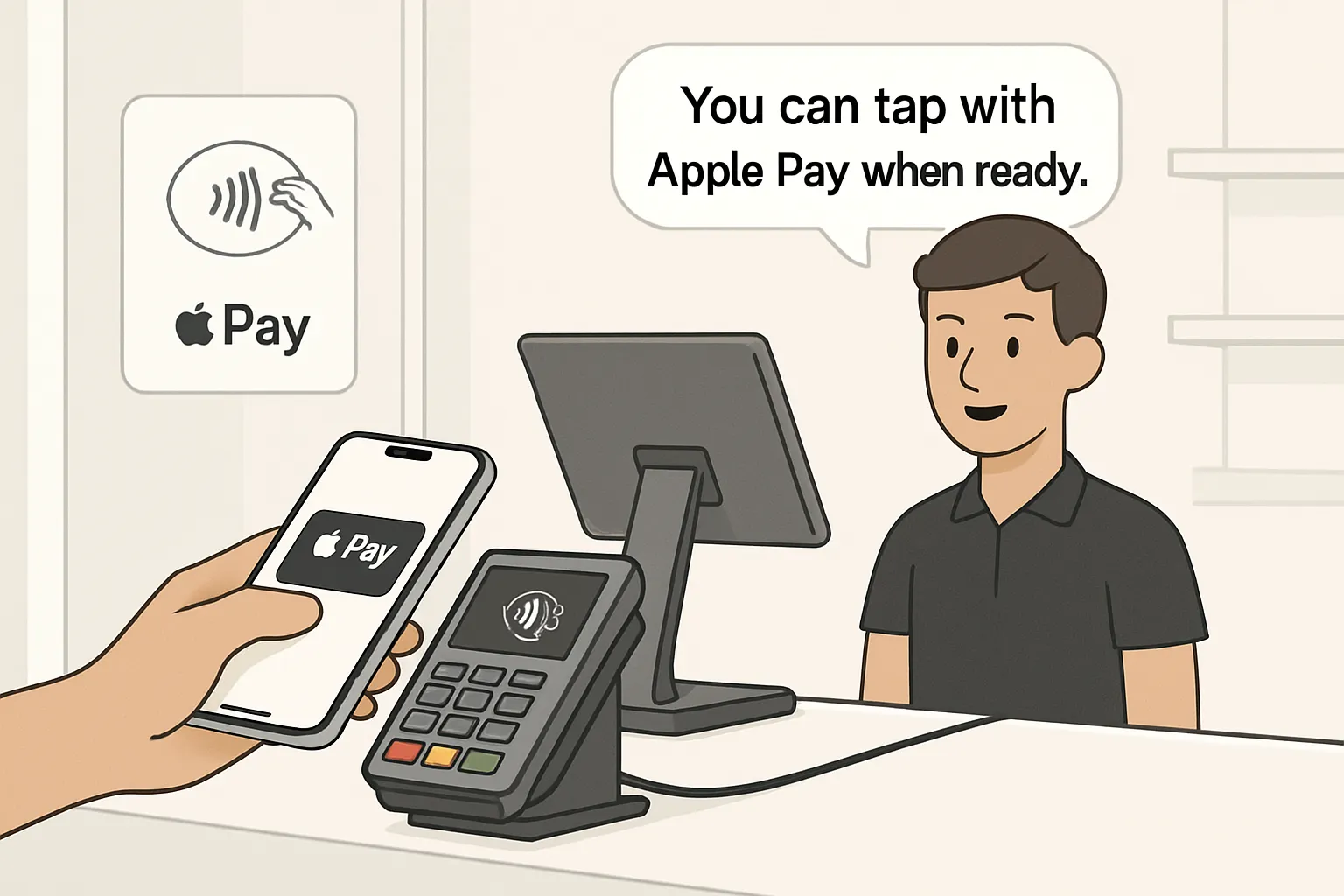
Deliver the fastest possible tap‑to‑pay experience by combining crystal‑clear visual cues, practiced staff prompts, and resilient fallbacks. Loyaltee then turns each purchase into a future visit with on‑pass offers and push notifications.
Terminal placement and signage that invite Apple Pay use
Place contactless symbols at eye level near the door and checkout lane.
Add decals on the reader/PIN pad and a small counter tent with the Apple Pay mark.
Position the NFC reader within easy reach and angle it toward the shopper; avoid clutter and cable tangle.
Train cashiers to use a friendly prompt: “You can tap with Apple Pay when ready.”
Step‑by‑step flow to reduce fumbling at the reader
iPhone with Face ID
Double‑click side button → authenticate with Face ID → hold the top of iPhone near the contactless symbol.
Apple Watch
Double‑click side button → hold the display near the reader → feel a gentle haptic + hear a beep to confirm.
Tips:
Keep the top edge of iPhone near the symbol; pause until you see Done and a checkmark.
If the first tap doesn’t register, slightly adjust angle/distance and try again.
Edge cases and how to handle them
Low connectivity checkout; offline rules by issuer/acquirer
Some terminals/acquirers allow limited offline approvals. If the network is down, process as configured and inform customers that receipts may be delayed.
Transit/Express modes; tips for age‑restricted items
Express Transit lets designated cards bypass Face ID/Touch ID - ideal for gates. For age‑restricted items, request ID as usual; payment method doesn’t change compliance steps.
Split tenders and partial authorizations
Ask which amount to place on Apple Pay first, then complete the balance via chip/swipe/cash or a second Apple Pay authorization if your POS supports split tenders.
Receipts and post‑purchase comms
Offer digital receipt opt‑in at checkout. If printing, include a short link or QR to manage preferences.
Add a clear prompt on the receipt and customer display: “Add our loyalty pass to your Apple Wallet for points and instant offers.”
Boost adoption at the counter with Loyaltee
Place a short link or QR code at the counter to add your branded Wallet loyalty pass before or after payment. Staff can mention: “Scan to add your pass and earn today.”
Use Loyaltee push notifications to remind customers of points, perks, and targeted offers before their next visit.
Update pass fields dynamically (points balance, offers expiring soon) so the pass surfaces on the lock screen when it matters most.
With the right placement, prompts, and fallbacks - plus Loyaltee to turn taps into repeat revenue - you deliver a fast, frictionless, and fail‑safe in‑store Apple Pay experience.
It looks like you might be continuing the multi-section article. I’m ready for the next section when you are - just share the structure and any required elements, and I’ll follow the function rules.
Online Best Practices: Apple Pay on the Web (Safari and Beyond)
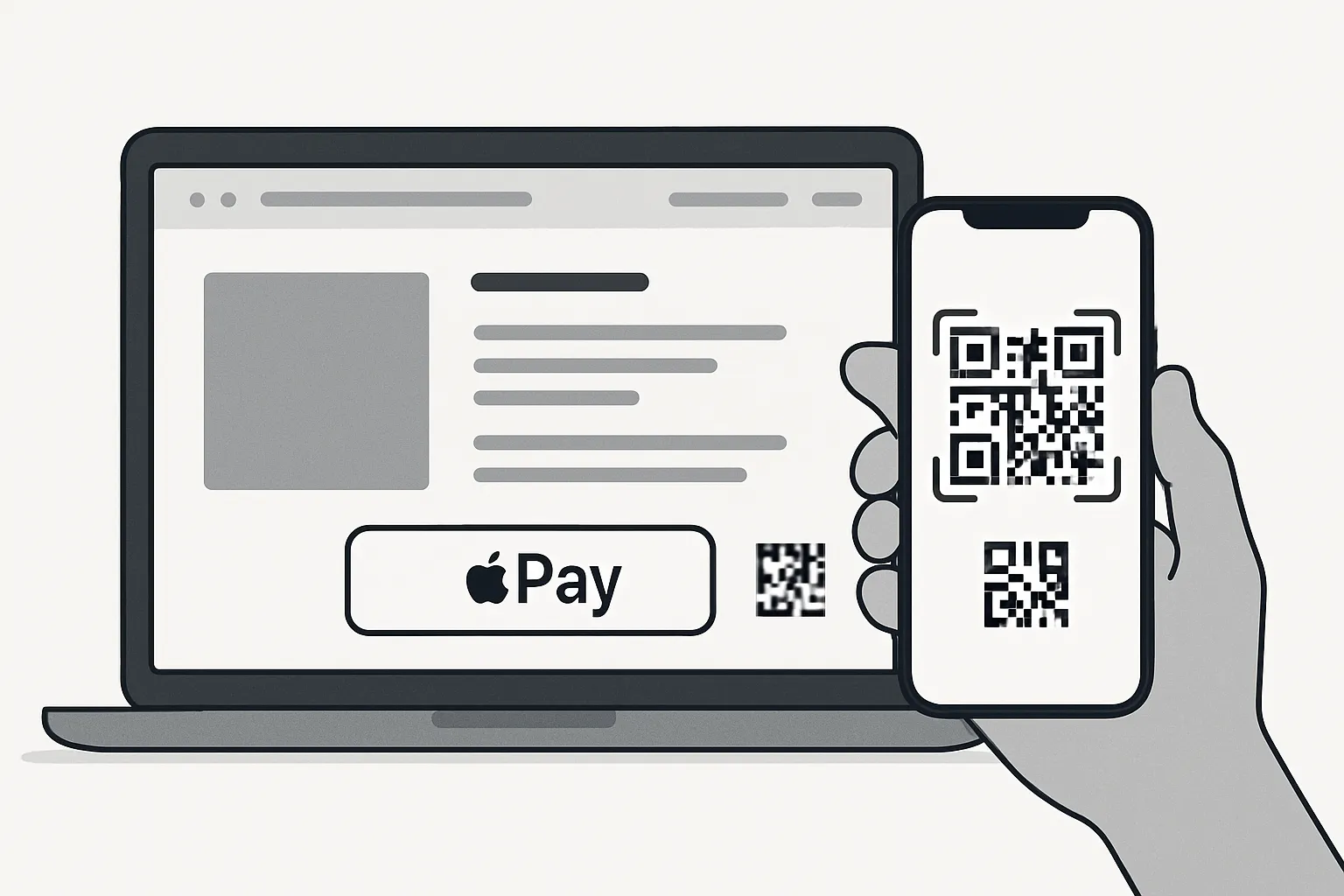
Deliver a checkout that’s as fast as in‑app by making Apple Pay available on Safari and compatible browsers, with smart fallbacks for everything else. Loyaltee completes the loop by auto‑applying loyalty and offers via Wallet passes, so your customers see value instantly and convert sooner.
Safari and compatible browsers
When to show the Apple Pay button; device detection best practices
Detect Apple Pay capability at runtime (not user agent alone) and surface the button early - on PDP, mini‑cart, and cart.
Keep the button visible through checkout; avoid gating behind account creation or long forms.
Third‑party browsers: QR code handoff to the iPhone/iPad camera flow
If the browser doesn’t support Apple Pay, show a QR code that launches the Apple Pay sheet on iPhone/iPad for secure handoff.
Persist the cart server‑side so items, totals, shipping, and discounts survive the device switch.
Technical must‑dos
Domain verification, merchant IDs, valid certificates
Verify each domain/subdomain for Apple Pay JS; configure merchant IDs and payment processing certificates; set supported networks and capabilities.
Fallbacks: guest checkout; saved cards; other wallets
Always provide guest checkout, card on file/saved cards, and alternative wallets. Keep the path to purchase clear if Apple Pay isn’t available.
UX essentials that lift conversion
Place Apple Pay early in the flow (cart/mini‑cart)
Fewer steps and fewer fields equal higher completion - especially on mobile Safari.
Auto‑apply coupons/loyalty; free‑shipping thresholds surfaced on sheet
Use Loyaltee to attach offers/points automatically when a Wallet pass is present.
Show shipping costs and free‑shipping thresholds before the Apple Pay sheet so there are no surprises.
Global considerations
SCA/PSD2 flows in the EU; postal formats; localized messaging
Ensure SCA support with seamless biometric prompts; validate address formats per country; localize currency, taxes, and error states.
Respect regional availability differences; provide clear alternatives where Apple Pay on the web isn’t supported.
Post‑purchase trust signals
Clear confirmation; order tracking; easy refunds
Show an immediate, unambiguous success state with order details and delivery estimates.
Offer one‑tap account creation from the receipt page; provide visible refund/returns links and policy.
Operational guardrails
AVS/CVV policies for non‑wallet fallback; refund process parity
Tune AVS/CVV thresholds for card‑not‑present fallbacks to balance fraud prevention and acceptance.
Ensure refunds/voids behave consistently across Apple Pay and standard card flows, with unified reporting and reconciliation.
By pairing Apple Pay on the web with airtight fallbacks and Loyaltee-powered loyalty automation, you remove friction, raise trust, and move more carts to “paid.”
Troubleshooting Declines and Errors: Playbooks for Shoppers and Teams
When paying with Apple Wallet hiccups occur, quick, consistent responses keep lines moving and trust intact. Use these playbooks to diagnose fast, resolve confidently, and minimize churn.
Quick fixes for shoppers
Re‑present the device: hold the top of iPhone closer to the contactless symbol; adjust angle and hold steady until you see Done and a checkmark.
Confirm the contactless symbol is present and the terminal supports Apple Pay.
Try a different card in the Apple Wallet: tap the default card on screen and select an alternate.
Check bank/issuer notifications for declines or additional verification.
Ensure the card isn’t expired, frozen, or over limit; verify billing address matches the issuer.
Update iOS/watchOS; confirm Face ID/Touch ID works; restart device if needed.
Associate playbook (frontline)
Confirm the terminal supports contactless/Apple Pay and is online; check for reader error lights/messages.
Politely prompt shoppers to try an alternate Wallet card or re‑authenticate Face ID/Touch ID.
If Apple Pay still fails, offer fallback: chip + PIN or swipe (per policy), or split tender if supported.
Check receipt/host status for pending vs. approved; avoid duplicate attempts without checking terminal state.
For repeated failures, move to a nearby lane/reader to rule out device hardware issues.
Manager/ops playbook (back office)
Check PSP/processor dashboard for outages, error spikes, or risk rule changes; review terminal logs and batch/settlement status.
Inspect contactless settings, firmware versions, and network connectivity (LAN/Wi‑Fi/cellular failover).
Provisioning/token issues: ask the customer to remove and re‑add the card in the Apple Wallet; verify issuer supports tokenization for that BIN/region; escalate to issuer if needed.
Integration sanity checks (if applicable): merchant IDs, associated domains, Apple Pay capabilities/entitlements (often referred to as “com.apple.pay”), and certificate validity with your gateway.
Document incident codes and time windows for processor support; schedule firmware updates and regression tests.
Edge cases
Offline mode limits: some terminals/acquirers allow limited offline approvals; inform customers receipts may be delayed and finalize when online.
Preauths at gas pumps/hotels: higher or variable holds may trigger issuer declines; advise chip‑inside or see attendant for inside authorization.
Tips/gratuities and adjustments: ensure POS supports tip‑on‑total after Apple Pay auth; verify final amount rules with acquirer.
Partial approvals and split tenders: if partial auth occurs, complete balance with a second method (another Wallet card, chip, or cash).
Customer comms
Script with empathy: “Looks like that didn’t go through. Let’s try your card again or switch to another card in the Apple Wallet - there won’t be a double charge.”
Reassure on duplicates: explain pending authorizations vs. captured charges; most pendings fall off automatically.
Show how to check Apple Pay history: Wallet > select card > Transactions.
Offer a quick path: “If you prefer, we can complete this via chip or another method right now.”
After resolution, invite loyalty: “Scan here to add our loyalty pass for points and offers on your next visit.”
Common Apple Pay Error Messages → Causes → Actions (Shopper / Associate / Ops)
Error Message | Common Causes | Actions – Shopper | Actions – Associate | Actions – Ops |
|---|---|---|---|---|
Payment Not Completed | Authentication cancelled; sheet dismissed; Face ID/Touch ID failed; network hiccup | Reopen Apple Pay, authenticate fully; try again; switch to another card; restart device if persistent | Verify reader ready; prompt re‑auth; try another lane/reader; offer chip fallback | Check PSP dashboard for spikes; verify terminal connectivity; review recent config changes |
Card Not Supported | Issuer/network not enabled for Apple Pay or merchant MCC; regional restrictions | Try a different card in the Apple Wallet; contact issuer for Apple Pay support | Inform shopper of supported networks; suggest alternate tender | Confirm supported networks/MCC with acquirer; update gateway settings and BIN tables |
Hold Near Reader | Phone top not aligned; reader antenna placement; reader asleep | Hold top of iPhone closer/flush; wait for haptic/beep; try slight angle | Wake reader; position/angle reader toward shopper; confirm contactless enabled | Inspect reader firmware/NFC settings; replace faulty hardware; check interference/cable placement |
Transaction Declined by Issuer | Insufficient funds/limit; fraud rules; geo/risk mismatch; preauth amount too high | Check issuer app/SMS; use alternate card; call issuer if flagged | Offer alternate payment; suggest lower amount/split tender if appropriate | Review decline codes; adjust risk settings with PSP; confirm preauth strategy and MCC mapping |
Cannot Set Up Apple Pay (Provisioning) | Tokenization blocked; verification failed; card/region unsupported | Remove and re‑add card; complete issuer verification; update iOS | Provide Wi‑Fi for verification; advise contacting issuer | Validate merchant configuration: merchant IDs, “com.apple.pay” capability, certificates; coordinate with issuer on token enablement |
Try Again Later | Temporary network/service issue; busy gateway | Wait 60 seconds; retry; switch to another card or method | Move to another reader/lane; run chip fallback if time‑sensitive | Check incident pages; enable network failover; throttle/retry policies; communicate ETA to stores |
Network Error | Poor device or terminal connectivity; DNS/firewall issue | Toggle Airplane Mode off/on; move to better signal; retry | Verify terminal online; restart terminal; use alternate lane | Monitor network health; inspect firewall/DNS; failover to backup ISP/cellular; open PSP support ticket |
A consistent, empathetic response paired with clear fallbacks keeps customers confident - even when something goes wrong. With Loyaltee, you can close the loop post‑incident by nudging shoppers back with an offer on their Wallet pass, turning a failed tap into a future, successful visit.
Security, Privacy, and Compliance Essentials
Security is the reason Apple Pay converts: it removes sensitive data from the checkout flow, streamlines Strong Customer Authentication, and builds customer trust in every channel. Combined with Loyaltee’s Wallet‑native engagement, you can raise acceptance while keeping compliance overhead in check.
How tokenization and the Secure Element protect PANs and reduce PCI scope
Network tokenization replaces the primary account number (PAN) with a unique Device Account Number (token) when a card is added to the Apple Wallet. The real PAN is never shared with the merchant during payment.
The token lives in the device’s Secure Element - a tamper‑resistant chip - and each transaction includes a dynamic cryptogram (one‑time code) that binds the payment to that device and moment in time.
Because no PAN is exposed to your systems, cardholder data never touches your servers during Apple Pay transactions, which can significantly reduce PCI DSS scope. You’re still responsible for PCI compliance for other flows (e.g., manual card entry, saved cards), but Apple Pay minimizes exposure in wallet flows.
Biometric authentication (Face ID/Touch ID) and risk scoring basics
Apple Pay activates Face ID or Touch ID (or device passcode) to confirm cardholder presence, providing a strong inherence factor.
Issuers and networks apply risk scoring using device signals and token metadata (device binding, domain controls, geolocation consistency) to improve authorization accuracy.
The result: fewer false declines and lower fraud for card‑present‑like and web wallet flows compared to keyed card entry.
SCA/PSD2 in Europe and what changes in the Apple Pay sheet
Under PSD2, Apple Pay typically satisfies two‑factor SCA with possession (the device + token) and inherence (biometrics), so the Apple Pay sheet prompts Face ID/Touch ID when needed.
Many transactions qualify for low‑friction SCA because biometrics are native and fast; where exemptions apply (e.g., low‑value, TRA), issuers may silently approve without extra steps.
On the web, Apple Pay integrates with 3‑D Secure logic behind the scenes, preserving a clean UI while meeting SCA requirements.
Fraud posture with wallets vs manual card entry; device binding advantages
Wallet flows carry dynamic cryptograms and token binding, making stolen static data (like printed numbers or screenshots) far less useful.
Device binding drastically reduces counterfeit/credential‑stuffing vectors common in CNP (card‑not‑present) forms.
Expect higher authorization rates and lower chargeback ratios versus manual card entry, especially on mobile.
Data minimization: collect only what you need; retention policies
Ask only for data essential to fulfillment (e.g., shipping address, email for receipt). Avoid redundant fields; trust the Apple Pay sheet’s verified contact details.
Respect purpose limitation: don’t repurpose checkout data for unrelated marketing without consent; honor deletion requests promptly.
Encrypt at rest and in transit for any stored PII; define clear retention windows aligned with legal, tax, and dispute requirements.
Operational security hygiene
Role‑based access control: grant least‑privilege access to payment dashboards, refunds, and reporting. Separate duties between ops, finance, and engineering.
Audit logs: track who performed captures, refunds, voids, and configuration changes. Review logs regularly to detect anomalies.
Credential and certificate management: rotate API keys, refresh Apple Pay payment processing certificates before expiry, and monitor merchant IDs/associated domains (the capability often referenced as “com.apple.pay”).
Chargeback workflows: standardize evidence collection (receipts, timestamps, device/payment tokens), define SLAs for dispute response, and track win/loss rates to fine‑tune risk rules.
Business continuity: implement PSP failover paths, test offline terminal behavior limits, and document recovery procedures.
Eco‑friendly bonus: wallets vs plastic cards and printed coupons
Digital wallets cut plastic and paper waste by replacing physical loyalty cards and printed coupons with dynamic, updateable passes in the Apple Wallet.
With Loyaltee, every pass becomes a reusable, measurable channel: refresh offers server‑side, push targeted messages, and retire outdated campaigns - no reprints, no landfill.
Bottom line: paying with Apple Wallet pairs enterprise‑grade security (tokenization, Secure Element, biometrics) with a cleaner compliance profile and higher trust. Loyaltee activates that advantage by turning your Wallet presence into a secure, always‑on revenue channel that’s better for your customers - and the planet.
Drive Adoption, Loyalty, and ROI with the Apple Wallet Using Loyaltee
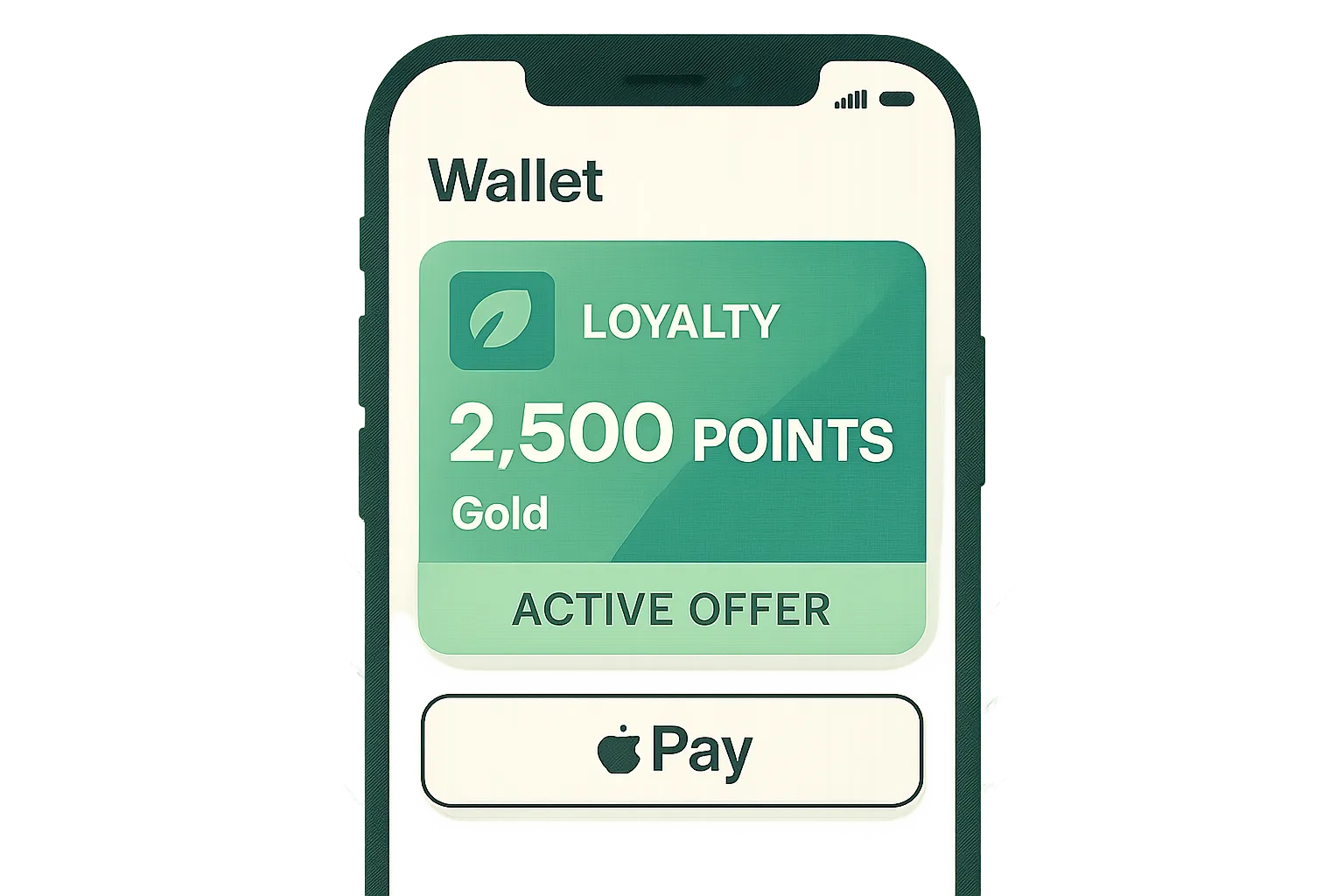
Turn Apple Wallet into a measurable revenue channel. Loyaltee couples your branded pass with Apple Pay to make “add to Wallet → pay → earn/redeem” a single, native journey - no apps, no forms, and less friction at every step.
Why pair payments with a Wallet‑first loyalty strategy
Frictionless onboarding: customers scan a QR or tap a link to add your pass to the Apple Wallet - no app or account creation required.
Higher engagement: your pass lives on the device, surfaces on the lock screen contextually, and supports discreet push notifications with strong open rates.
Measurable repeat visits: track redemptions, visits, and Apple Pay share to prove incremental revenue - not just sign‑ups.
Launch a branded Wallet pass in minutes (Loyaltee)
Full branding: upload logos, choose brand colors, and customize layouts.
Dynamic fields: show points balance, tier status, expiry dates, and targeted offer banners that update in real time.
Eco‑friendly: replace plastic cards and printed coupons with a dynamic, updateable pass - lower cost, lower waste, higher agility.
Grow usage with smart triggers
Push notifications: target by geo (near a store), time (rush/slow periods), item/category interest, or lifecycle stage (win‑back, VIP). 50%+ open rates are common for Wallet‑native nudges.
Auto‑apply perks: when the Wallet pass is present, automatically apply member pricing, points, or coupons at checkout - in‑store, in‑app, or online - so benefits appear without codes.
Offer sequencing: start with a welcome perk, then shift to margin‑friendly boosters (threshold offers, bundles) to increase AOV.
Measure what matters
Core KPIs: pass adoption rate, Apple Pay share by channel, conversion uplift vs. standard checkout, repeat purchase rate, average order value (AOV), and time‑to‑repeat.
Funnel analytics: track “view pass” → “add to Wallet” → “open pass” → “Apple Pay initiated” → “authorized/captured.”
Experimentation: A/B test offer copy, value, and timing; optimize push cadence and segmentation with Loyaltee’s AI insights.
Attribution clarity: tie pass events and redemptions to transactions for true incremental measurement.
Integrate with your stack
APIs for scale: update pass fields (points, tier, offers) and send push notifications programmatically.
Connect POS/eCommerce: sync loyalty IDs and promotion logic so Wallet‑present customers receive benefits instantly.
Privacy‑safe data: honor regional privacy norms with data minimization, consent flags, and flexible retention policies.
Multi‑location playbook
Standardized templates: keep consistent branding while enabling local menu/assortment and localized offer blocks.
Localized offers: trigger store‑specific promotions (new openings, slow‑hour boosts) and geo‑smart reminders.
Centralized reporting: compare adoption, Apple Pay share, and revenue impact across regions, formats, and campaigns.
Bottom line: Payments are the moment of truth. By making the Apple Wallet your first‑class loyalty surface - and using Loyaltee to orchestrate passes, offers, and push - you shorten the path to Apple Pay, lift conversion and AOV, and keep customers coming back.
Conclusion: Turn Apple Wallet into a Revenue Channel with Loyaltee
Apple Wallet plus Apple Pay is more than a payment option - it’s the fastest path to measurable revenue. By pairing a Wallet‑first loyalty strategy with best‑practice checkout flows, you turn every tap into a conversion opportunity and every receipt into a reason to return.
Recap: best practices across in‑store, in‑app, and online
In‑store: Use clear contactless/Apple Pay signage, position the reader within easy reach, train staff to prompt “You can tap with Apple Pay when ready,” and maintain fail‑safe fallbacks (chip/swipe, split tender).
In‑app: Place the Apple Pay button above the fold, request only essential fields, support promo/loyalty auto‑apply, and keep the sheet loading in under a second.
Online: Detect capability to show the Apple Pay button early (PDP, mini‑cart, cart), verify domains, enable secure fallbacks, and use QR handoff for non‑compatible browsers.
The upside: faster checkout, higher conversion, stronger retention, lower costs
Speed: One‑tap authentication and fewer fields slash checkout time and cart abandonment.
Trust: Tokenization, Secure Element, and biometrics reduce perceived risk and false declines.
Retention: Wallet‑native passes with proactive offers turn occasional buyers into loyal customers.
Efficiency: Lower support overhead, fewer reprints/plastic, and clearer cross‑channel attribution.
Next steps
Enable Apple Pay across channels; add clear signage and staff scripts to invite tap‑to‑pay.
Launch a branded Wallet pass with Loyaltee to unify payments, offers, and data - no app required.
Run measurable campaigns and push timely, geo‑smart offers that lift repeat visits and AOV.
Track the right KPIs: Apple Pay share, pass adoption, conversion uplift, repeat purchase rate, and time‑to‑repeat.
Call to action
Start with Loyaltee today: scalable pricing, fast setup, and APIs to fit your stack. https://loyaltee.xyz/