.webp)
Why Samsung Wallet for Tickets: Speed, Convenience, and Confidence
When time matters - getting through a stadium gate, catching a train, or boarding a flight - Samsung Wallet for tickets delivers a faster, more reliable experience than paper or app-only options. With barcodes/QRs, NFC where supported, and smart offline behavior, your passes stay ready to present even when connectivity is spotty. And with Quick access, your next ticket is just a swipe away - no searching, no stress.
What “tickets” Samsung Wallet supports
Event tickets (concerts, sports, cinema)
Transit tickets and passes (where supported by transit authorities)
Boarding passes (with participating airlines)
Key benefits vs. paper or app-only tickets
Faster entry and fewer app-switches: Open via Quick access and present instantly - no digging through emails or separate apps.
Barcodes/QRs and NFC where supported: Scan visually or tap to validate on compatible gates and readers.
Offline-friendly behavior on supported services: Your Samsung Wallet tickets can remain usable during patchy coverage, and selected transit experiences support validation even without internet.
"Validate Navigo tickets offline for up to 72 hours and 15 validations; on compatible Galaxy models, validation can work up to 24 hours after the phone is powered off." - Source
The end-to-end flow at a glance
Add your ticket: Use an email link, a partner app’s “Add to Samsung Wallet” button, or an on‑site QR provided by the venue or transit authority.
Find it fast with Quick access: Swipe up on your Galaxy to reveal your tickets immediately - no app-hopping required.
Present it for scanning or tap to validate: Show the barcode/QR or tap at supported NFC validators and turnstiles.
Troubleshoot common venue issues quickly: Brighten the screen for barcode scans, switch to manual barcode view if a gate camera struggles, and confirm the correct pass is active for the zone or section. If a transit gate or venue scanner fails repeatedly, step to an attendant and present the on‑screen code or device for assisted validation.
With Samsung Wallet tickets, you move faster and worry less - while your brand (powered by Loyaltee) gains a reliable, measurable channel right on your customer’s phone.
Set Up Samsung Wallet and Quick Access (Android 9+ recommended)
Get Samsung Wallet for tickets up and running in minutes. For the smoothest experience, use a Galaxy device on Android 9 or higher and enable biometrics so your tickets are always a secure swipe away.
Device and OS requirements
Android 9 or above recommended; availability varies by region, carrier, and device model
Enable biometrics (fingerprint or PIN) for secure access and faster validation
"Samsung Wallet consolidates payment cards, membership cards, gift cards, digital keys, health passes, digital assets, and boarding passes; available on Android 9+ devices, with features varying by region/device." - Source
First-time setup
Open Samsung Wallet, sign in with your Samsung account, and accept the required permissions.
Set up fingerprint or PIN to secure Wallet and enable contactless validation where supported.
Turn on Quick access for faster ticket retrieval:
Lock screen: swipe up to open Samsung Wallet without unlocking
Home screen: swipe up for instant access
Screen off: swipe up to open Wallet even when the display is off
Pro tip: Keep Wallet one swipe away
Configure the swipe-up gesture in Quick access settings.
Set your default card behavior so the right pass appears first (e.g., your most-used transit ticket or event pass).
Add Event Tickets to Samsung Wallet (Email link, partner app, or QR)
Get your concert, sports, and cinema tickets into Samsung Wallet in seconds. Once added, your ticket is just a swipe away in Quick access - and ready to scan at the gate.
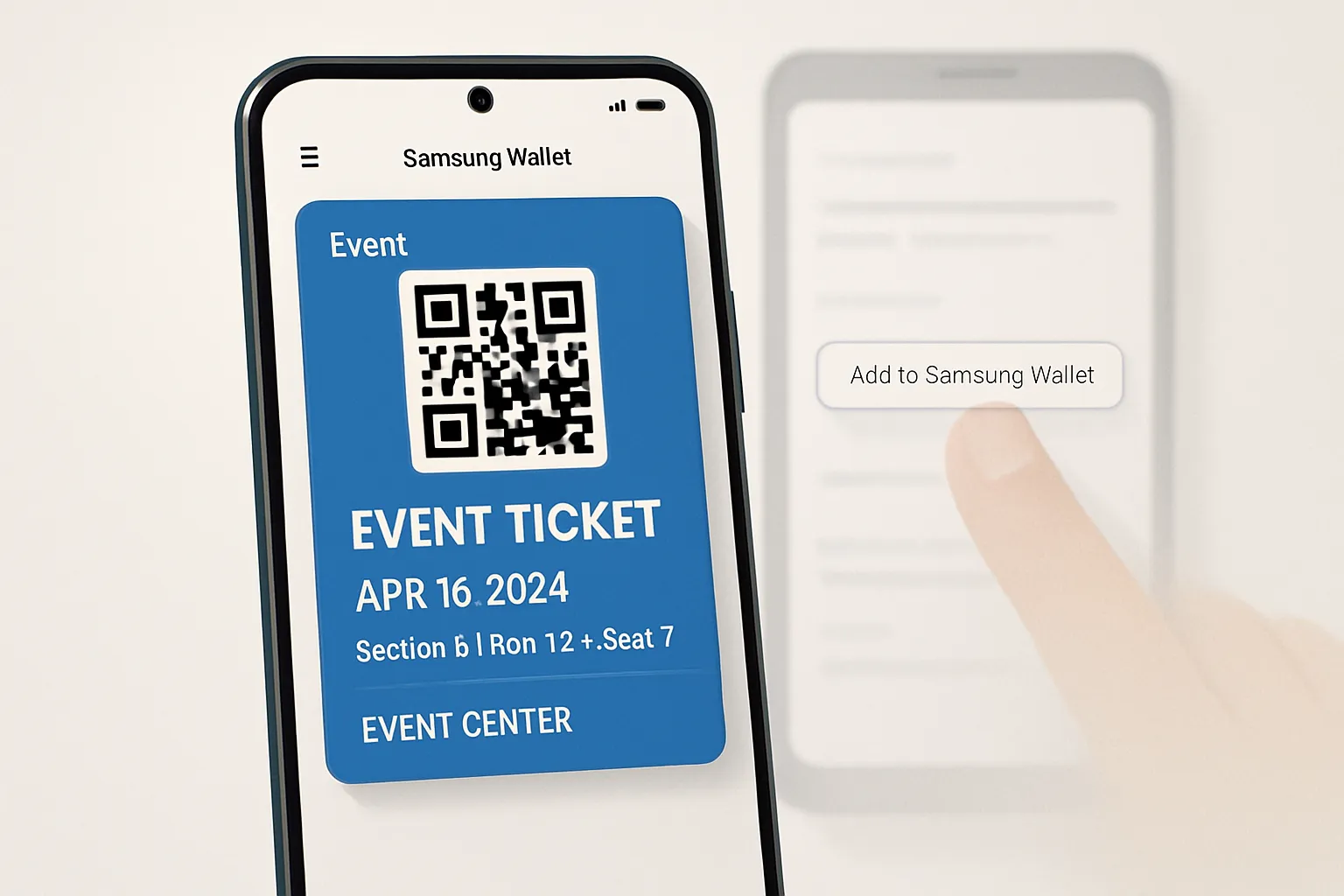
1) From your confirmation email or account page
Tap “Add to Samsung Wallet” where provided
Approve the add-to-Wallet prompt and verify if required (some issuers request 2FA)
2) From a partner ticketing app
Open the ticket in the app and look for Add to Samsung Wallet
Follow the in-app steps; allow any requested permissions for Wallet access
3) From an on‑site QR or kiosk (where supported)
Use your camera or the vendor’s app to scan the on‑site QR to reveal the “Add to Samsung Wallet” option
Complete the add and confirm the barcode/QR appears in Wallet
Handling multiple tickets
Add each ticket individually; ensure each pass shows the correct seat, section, and attendee name
Grouping or stacking behavior varies by issuer - verify visibility for each attendee before event day
What not to do
Avoid screenshots; they frequently fail at scanners and may violate venue policies
Don’t rely on PDFs when an official Add to Samsung Wallet option is available - Wallet passes render more reliably at gates
Quick test before you go
Open Quick access, surface the ticket, check that the barcode/QR renders, and increase screen brightness for fast scanning
Ways to add event tickets to Samsung Wallet
Source (email/app/QR) | How to add | Requirements (partner support, login, region) | Notes (common quirks, security prompts) |
|---|---|---|---|
Email or account page | Tap “Add to Samsung Wallet” in your confirmation email or order history | Issuer must support Samsung Wallet; sign-in may be required; regional availability varies | May trigger 2FA; sometimes the button appears only after tickets are released/assigned |
Partner ticketing app | Open ticket > Add to Samsung Wallet | App must integrate Samsung Wallet; use latest app version; login required | Allow Wallet permissions; some apps require enabling notifications to deliver passes |
On-site QR or kiosk | Scan venue QR or follow kiosk steps to reveal “Add to Samsung Wallet” | Venue must support Wallet issuance; online connectivity typically required | If network is congested, move to better signal or Wi‑Fi; re-open Wallet to confirm the pass displays |
Add Transit Tickets and Passes (Examples, Offline windows, Phone‑off)
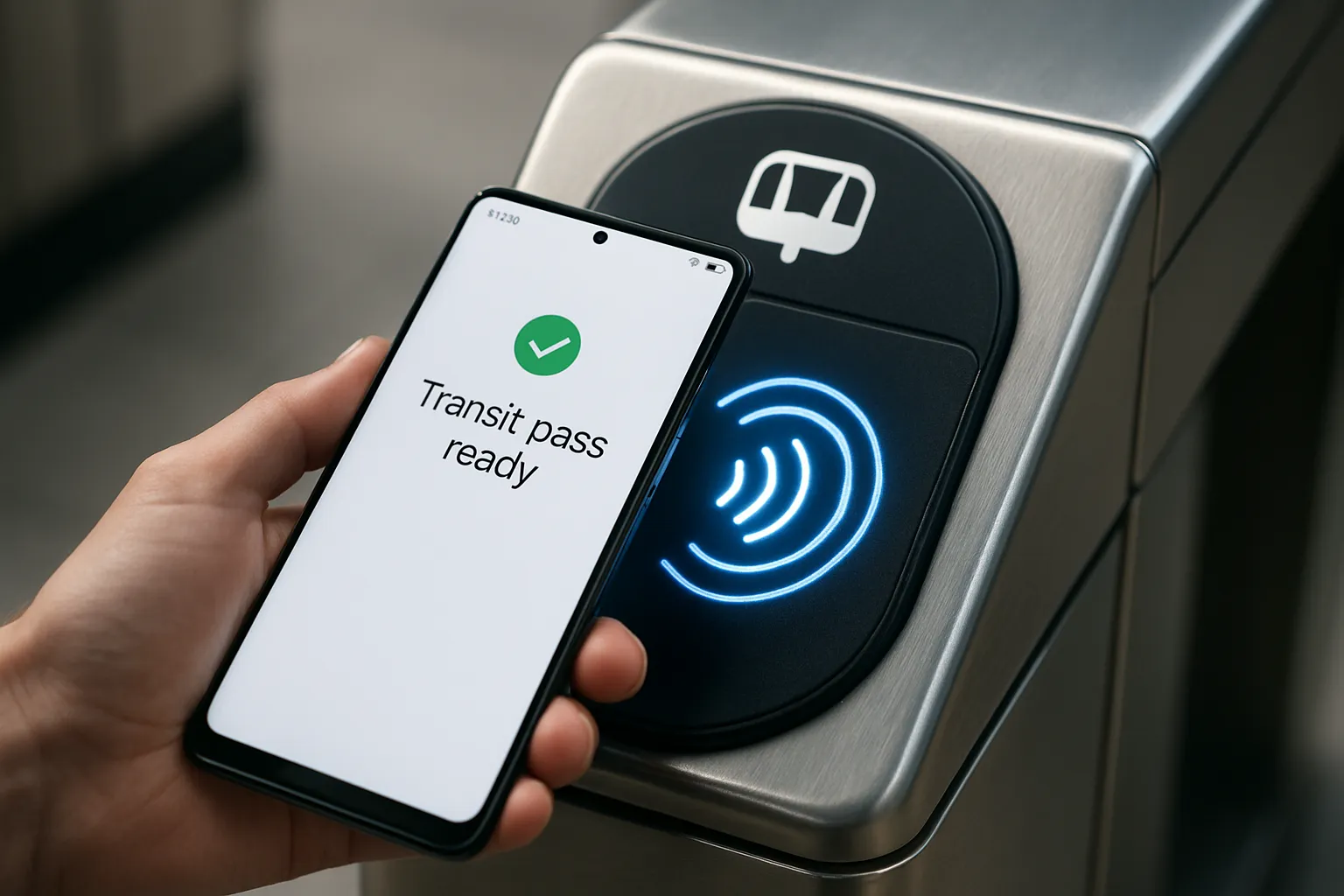
Transit on Samsung Wallet is designed for speed and reliability - buy eligible tickets, keep them in one place, and validate with a tap, even when connectivity is limited.
Where transit works today
Availability varies by city/authority; some regions support purchase in Samsung Wallet or via partner apps
Example: Île‑de‑France Mobilités (Navigo) supports tickets and passes with offline validation limits
Adding transit in practice
In Wallet, go to All > Transport (or the regional tile)
Install any required partner app when prompted
Purchase tickets/passes and confirm they appear in Samsung Wallet
Offline and phone-off behavior
Many systems support offline validation for a limited period or number of taps
Some Galaxy models allow validation even when the phone is powered off (for a limited window)
Limitations to note
Watch support may not be available in some regions
Titles available vary (e.g., singles, day passes, monthly) - check locally
Presenting Your Samsung Wallet Tickets at Doors, Gates, and Turnstiles
Find tickets fast
Swipe up for Quick access; pin your event or transit ticket
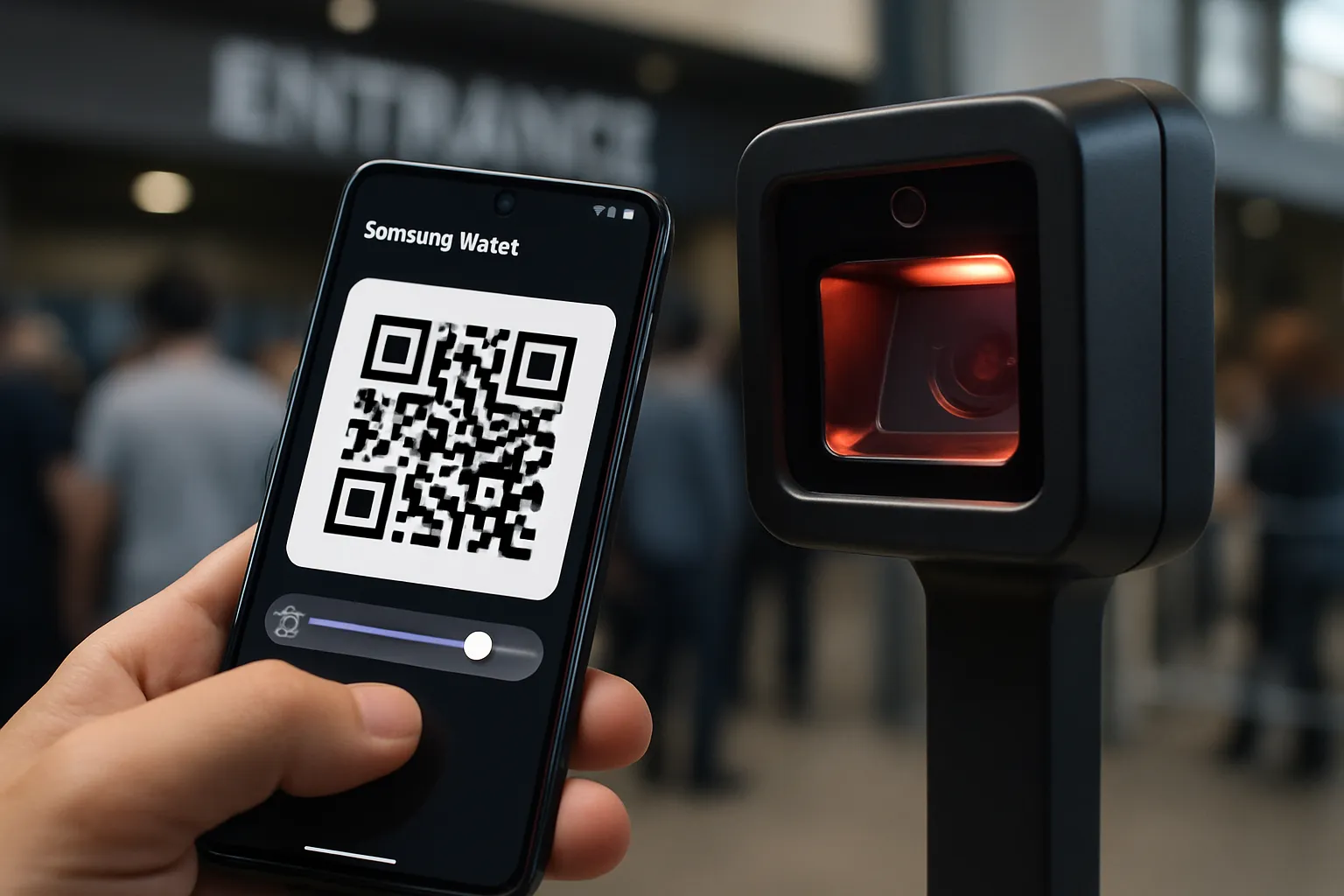
For events, tap to enlarge the barcode/QR; rotate to landscape if the scanner window is narrow
Barcode/QR best practices
Set max screen brightness; disable auto-dimming or Always On Display for the scan
Hold the phone 2–4 inches from camera scanners; keep the code flat and centered
If the reader struggles, clean your screen, reduce glare, and avoid animated wallpapers behind the code
Transit NFC taps
Place the back of the phone against the reader; keep steady until you feel a vibration or see a checkmark
On supported models and systems, you may not need to unlock your device
If a tap fails, try again with the phone centered on the NFC target and keep it still for one full second
Multi-guest or multi-ticket
Open the correct ticket for each attendee; don’t rely on a single barcode unless the issuer explicitly supports it
For assigned seating, verify name and seat on each pass before you approach the gate
Scan Like a Pro: Barcode, QR, and NFC Tips for Samsung Wallet Tickets
Identify the scanner type
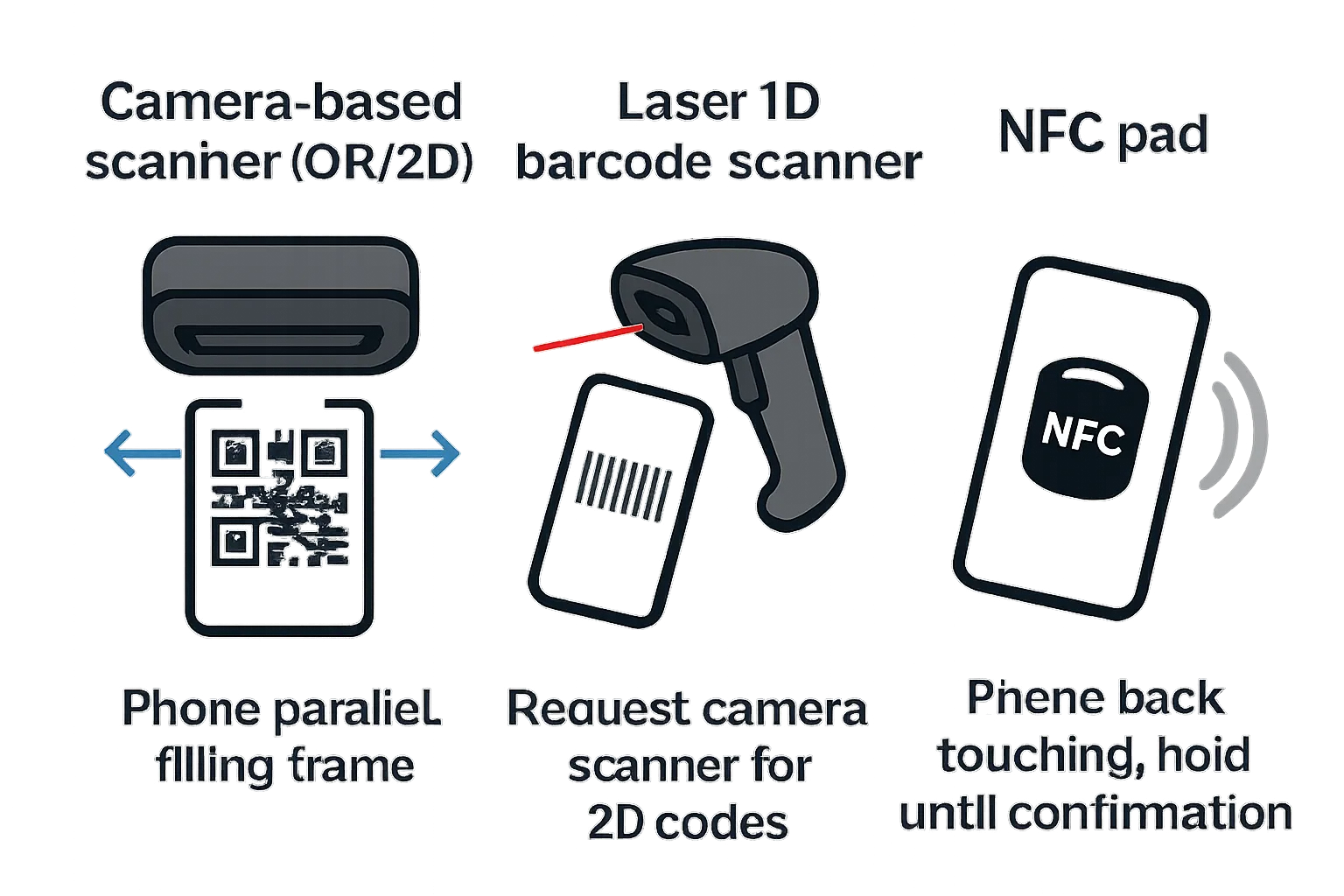
Camera-based (QR and 2D barcodes): hold steady, parallel to the window, and fill the frame without cropping.
Laser/red-line scanners (1D barcodes): if your ticket uses a QR or 2D code, ask for a camera scanner.
NFC pads (transit/keys): touch the back of the phone to the target and hold until you feel a vibration or see a checkmark.
Environmental optimizations
Avoid cracked protectors or mirror-finish screen covers; clean the glass to remove smudges and oils.
Turn off Dark mode per pass if contrast is poor; maximize brightness to beat ambient light.
Step out of direct sunlight that can wash out the display or confuse camera sensors.
Pro handling
Don’t zoom with pinch; use Wallet’s native enlarge button for barcodes/QRs.
If the code “animates,” wait for the active frame to stabilize before presenting.
Keep only the needed pass open to reduce confusion at the gate and speed up scanning.
Offline, Low‑Battery, and Phone‑Off Behavior (What to Expect)
Samsung Wallet for tickets is designed to work even when connectivity isn’t perfect. Here’s how to prepare so your barcodes, QR codes, and transit taps keep working when you need them most.
Event tickets
Most barcodes render offline once saved, but dynamic codes may refresh periodically at the issuer’s discretion. If you see a countdown or animated code, ensure it’s updated before you queue.
Open the ticket once before arrival to cache assets, then keep it in Quick access so it’s one swipe away when you reach the scanner.
Transit tickets/passes
Many transit authorities allow a set number of offline validations or hours without data; details vary by region and ticket type. Check your local guidance in the Wallet pass details or partner app.
Some Galaxy models enable limited validation even when the phone is powered off. Verify your device and local transit rules in advance.
Low-battery strategies
Pre‑charge and carry a compact power bank for long days or travel days.
Enable Power saving without disabling NFC, Bluetooth, or background data needed by your pass issuer.
Keep Wallet in Quick access to minimize screen‑on time; raise brightness only at the scanner, then reduce it again.
When to re-open or refresh
If scanning fails twice, re‑open the pass from Quick access to force a refresh, set max brightness, and retry.
For transit taps, hold the back of the phone to the reader until you feel a vibration or see a checkmark; if it fails, reposition on the target and try again.
Troubleshooting Samsung Wallet Tickets: Fast Fixes at the Gate
When seconds matter, here’s how to diagnose and resolve the most common Samsung Wallet tickets issues on the spot.
Common problems and how to resolve them
“Add to Samsung Wallet” button missing
Unknown error during transit purchase/transfer
Barcode not recognized by scanner
Ticket not appearing in Quick access
Region or device compatibility issues
Ticket issues, likely causes, and fixes
Issue | Likely cause (e.g., incompatible scanner, low brightness, region restrictions, expired pass, network needed for dynamic code) | Immediate fix (steps) | Who to contact if unresolved (issuer, venue, transit authority, Samsung) |
|---|---|---|---|
“Add to Samsung Wallet” button missing | Issuer doesn’t support Samsung Wallet; button appears only post‑assignment; regional restrictions | Check your order/account page; try mobile web vs app; update the issuer app; wait until tickets are released; look for “View in app” then Wallet option | Ticket issuer or venue support |
Unknown error during transit purchase/transfer | Payment gateway issue; partner app required; temporary authority outage | Install/update partner app; retry on Wi‑Fi; confirm payment card; if transferring, use pass menu > support link | Transit authority via pass menu; if Wallet crash, Samsung Wallet support |
Barcode/QR not recognized by scanner | Low brightness; camera scanner misaligned; laser (1D) scanner not compatible with 2D codes; screen glare | Max brightness; enlarge code; hold 2–4 inches, keep parallel and centered; ask for a camera scanner | Venue gate staff or ticket issuer |
Ticket not appearing in Quick access | Quick access not enabled; pass not added to favorites; different account/device | Samsung Wallet > Settings > Quick access; add pass to Quick access; verify you’re signed into the correct Samsung account | Samsung Wallet support; ticket issuer if pass shows as delivered but not visible |
Region or device compatibility | Feature not available for your region/model; outdated OS | Update Samsung Wallet and device OS; confirm Android 9+; check issuer’s supported regions | Samsung Wallet support; ticket issuer |
Dynamic code expired | Issuer rotates codes; device time inaccurate; offline too long | Reopen pass to refresh; toggle connectivity briefly; ensure automatic date/time | Ticket issuer |
NFC tap not registering at transit gate | Reader timeout; phone not centered on NFC target; NFC disabled | Re‑tap with phone back centered; hold until vibration/checkmark; ensure NFC is on; remove thick cases/metal plates | Transit authority or station staff |
Phone is offline and pass needs a refresh | Some passes require network to pull latest code | Temporarily connect to cellular/Wi‑Fi; reopen pass; try again | Ticket issuer |
App outdated or corrupted cache | Old Wallet or partner app build; corrupted data | Update Samsung Wallet and partner apps; force close and reopen; clear cache; reboot device | Samsung Wallet support; partner app support |
Multiple tickets causing confusion at gate | Wrong attendee/seat displayed; stacked passes | Open the correct pass for each guest; confirm seat/name; present one code at a time | Ticket issuer or venue |
Screen artifacts (privacy/mirror protector) | Privacy or reflective screen protectors can block scanners | Temporarily remove/offset protector; maximize brightness; reduce glare | Venue staff (alternate scanner lane) |
Kiosk/on‑site QR to add ticket doesn’t work | Congested network; QR not Wallet-capable | Move to stronger signal; try issuer app or account page to add; ask staff for alternate issuance | Venue/ticket issuer |
Transit transfer stuck mid‑flow | Partner app handoff failed; background permissions blocked | Reattempt from Wallet > Transport tile; allow requested permissions; keep app in foreground | Transit authority; Samsung Wallet if app behavior persists |
Escalation paths
Transit purchase/validation issues: Use the pass’s menu (often the three-dot menu) to reach the transit authority’s support or the partner app’s help center.
Samsung Wallet app behavior: For setup, Quick access, or crashes, contact Samsung Wallet support from the app’s Menu > Settings.
Venue or event issues: If scanners reject your barcode/QR, ask staff to switch to a camera scanner or provide an alternate validation method.
Pre-event checklist
Update Samsung Wallet and any partner ticketing or transit apps.
Confirm the ticket renders, enlarges, and scans in a test environment where possible (e.g., venue test lane or staff check).
Add a backup delivery method if allowed (PDF, ID + order number, or issuer app credentials).
Enable Quick access and surface the correct pass in advance; verify brightness controls and enlarge the code.
For transit, verify offline windows and phone‑off behavior for your device and network to avoid surprises at the gate.
Conclusion: Turn Wallet Tickets into Revenue - Start with Loyaltee
Samsung Wallet for tickets is more than a great guest experience - it’s a measurable revenue channel. When your event and transit experiences load fast, scan on the first try, and work offline where supported, customers notice. Loyaltee helps you turn those moments into retention, repeat visits, and higher basket size.
For retailers, venues, and service brands
Design scannable digital passes that load fast and scan on the first try
Use proven barcode formats (QR, PDF417, Code 128) and dynamic fields for real-time status, balance, or seat updates
Optimize for Samsung Wallet tickets so guests breeze through doors, gates, and turnstiles
Why Loyaltee
App-free onboarding with Apple and Google Wallet passes your customers actually use
High-engagement push notifications, real-time data, and AI to grow retention and revenue
Branded templates in minutes; developer-friendly APIs for updates and notifications
Scales from SMB to enterprise with transparent pricing
Next steps
Launch your first Wallet pass in days, not months
Measure redemptions, repeat visits, and ROI out of the box
Talk to Loyaltee to turn mobile wallet passes into a measurable revenue channel
Ready to make Samsung Wallet for tickets part of your growth stack? Start with Loyaltee and turn every scan into measurable value.